


Connect Instagram to Windsor.ai and build a live analytics dashboard in Claude
Step by step: link your Instagram account to Windsor.ai, turn on the Windsor.ai connector in Claude, then build a live analytics dashboard with one ready-made prompt.
You link your Instagram account (Business or Creator) to Windsor.ai once, then add Windsor.ai to Claude as an MCP connector. After that, one ready-made prompt builds a complete Instagram analytics dashboard that pulls live data from your account every time you open it.
Before you start you need: a professional Instagram account (Business or Creator), and a Windsor.ai account. Its free plan covers one Instagram account: after a 30-day free trial, the Forever Free plan keeps 1 data source and 1 account. You also need a paid Claude plan (Pro or higher), because a dashboard that reads data from connectors works only on the Pro, Max, Ultra, Team and Enterprise plans, in Claude on the web or the desktop app.
Link your Instagram account to Windsor.ai
Windsor.ai collects data from more than 350 sources (Instagram among them) and connects it to analysis tools, including Claude.
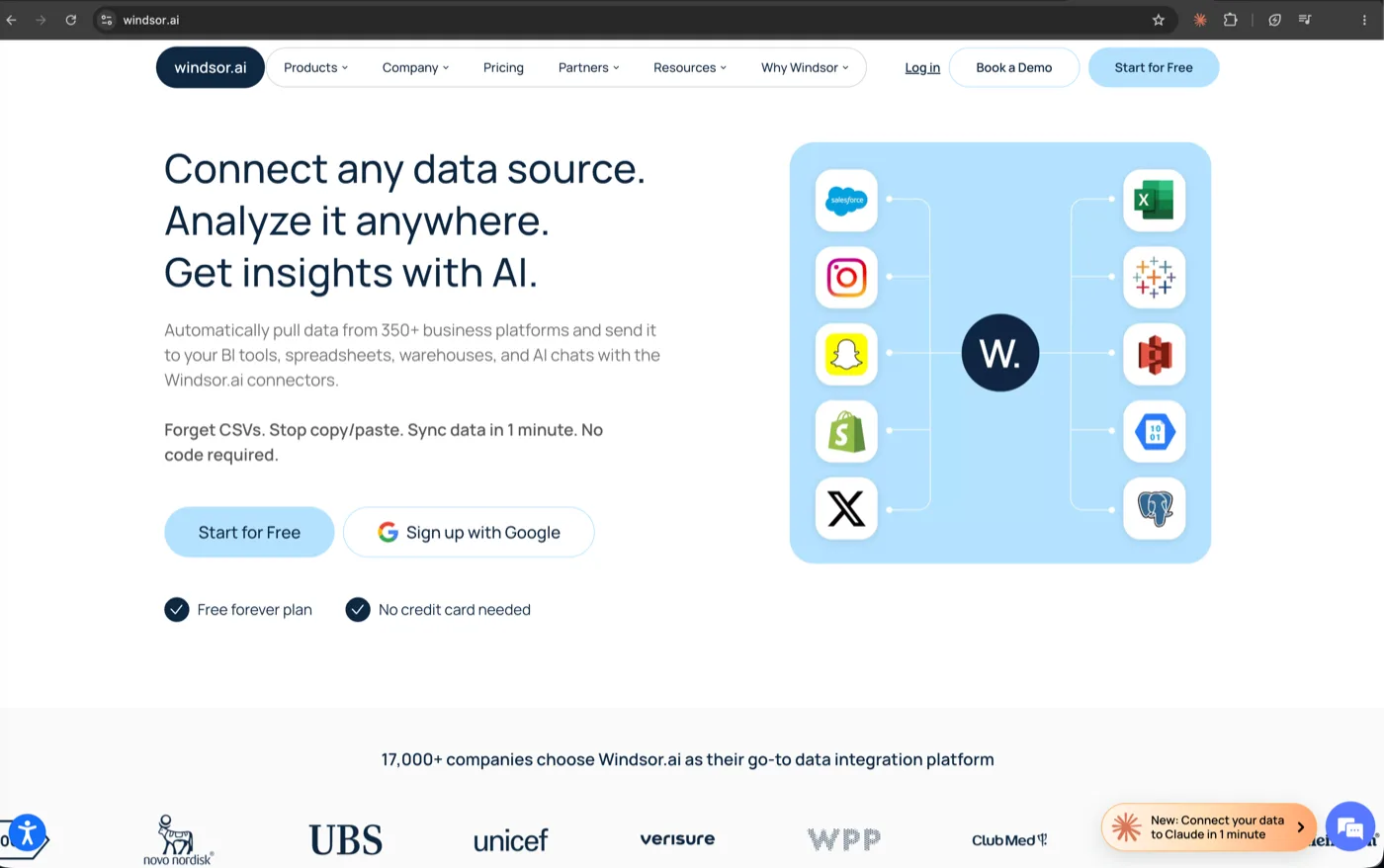
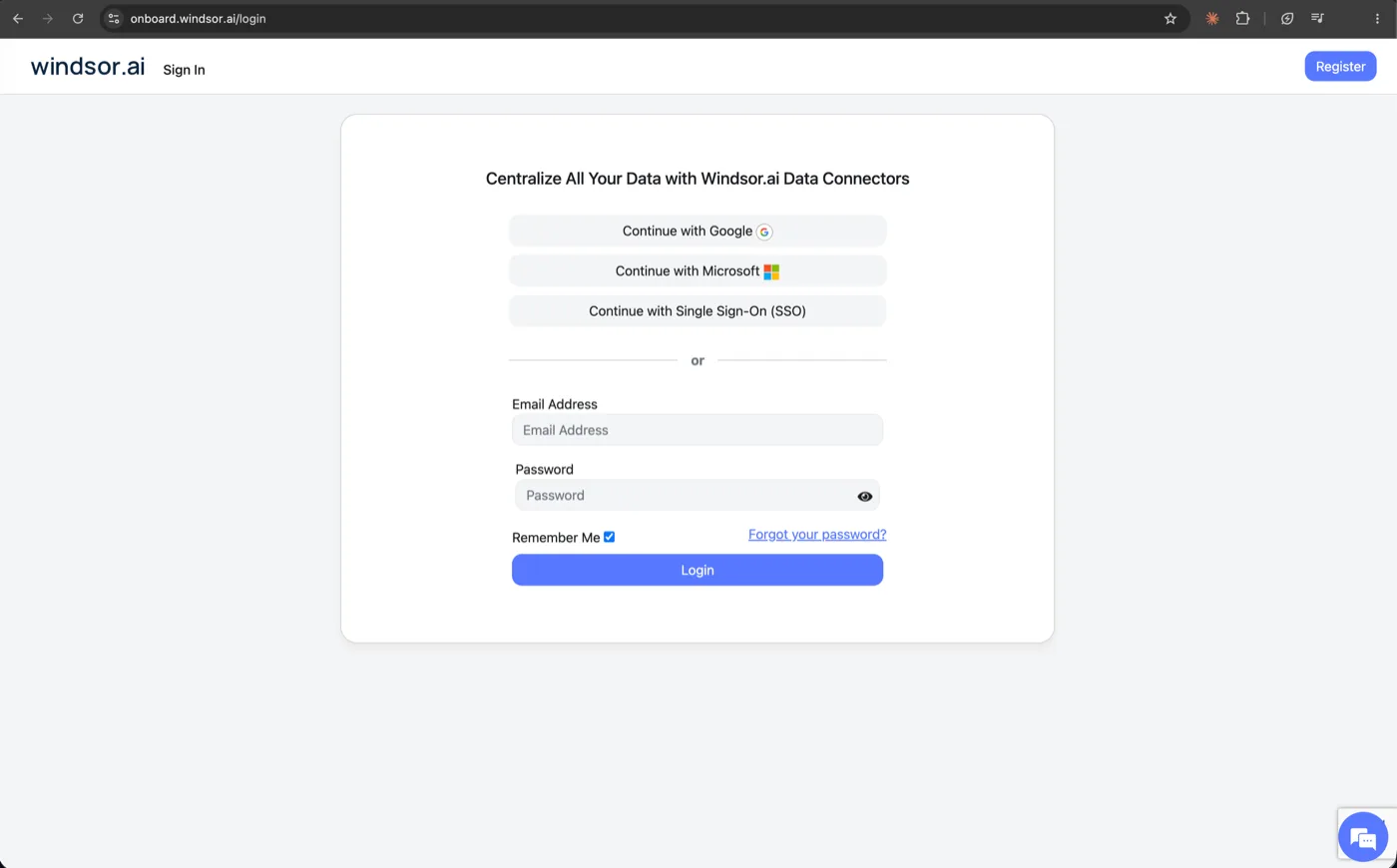
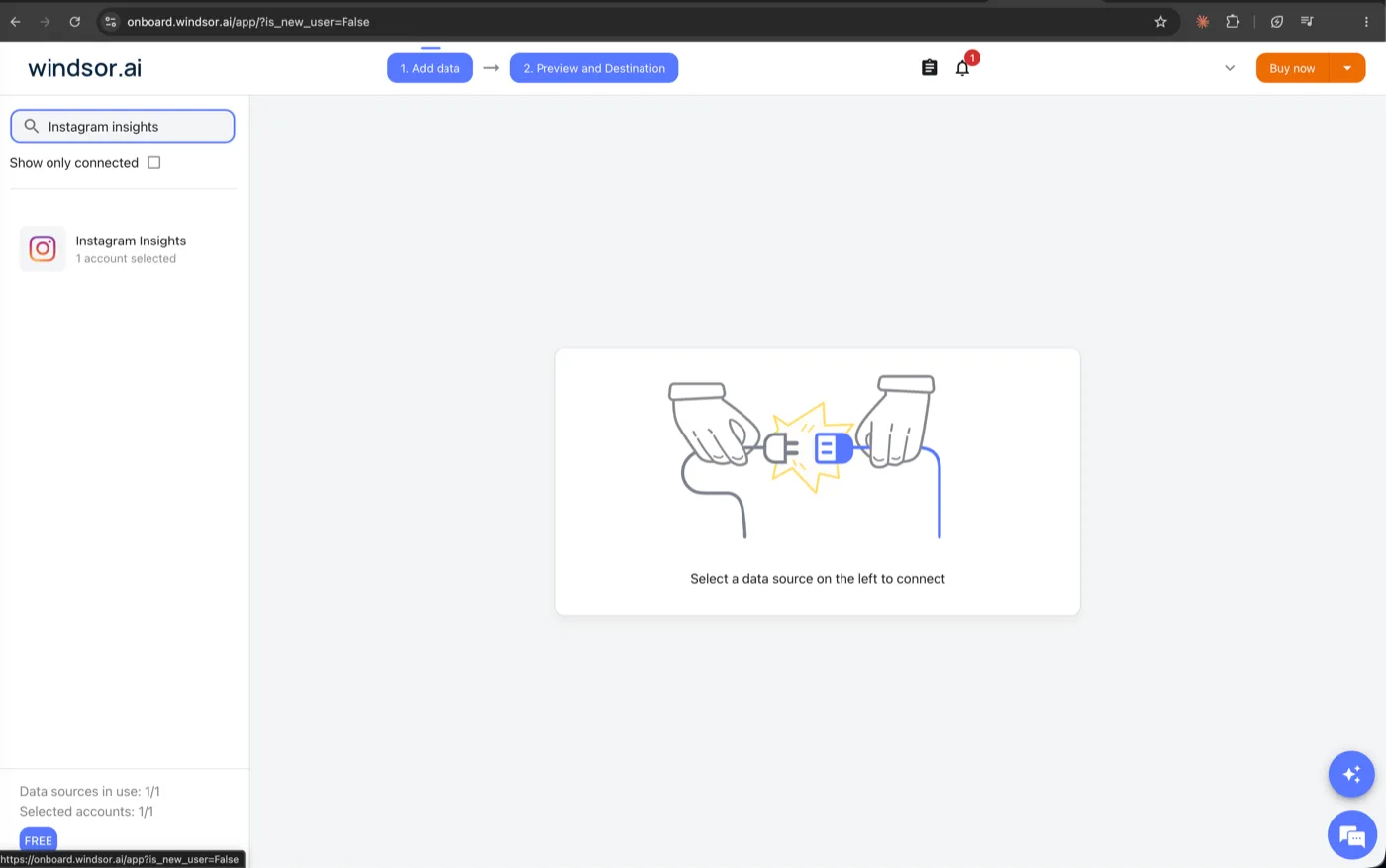
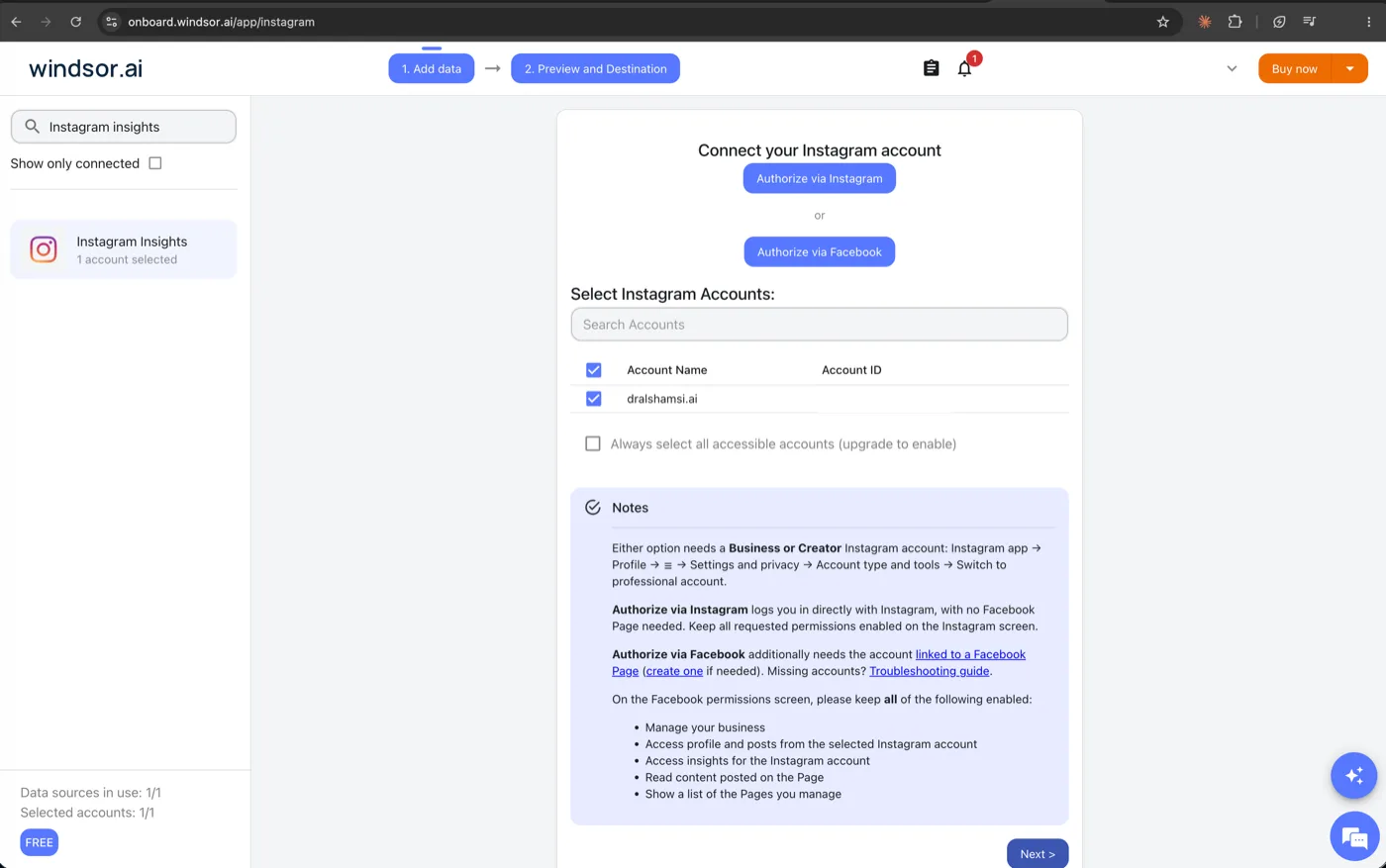
- Step 1.1: On the "Add data" screen, search for Instagram Insights and select it in the side list.
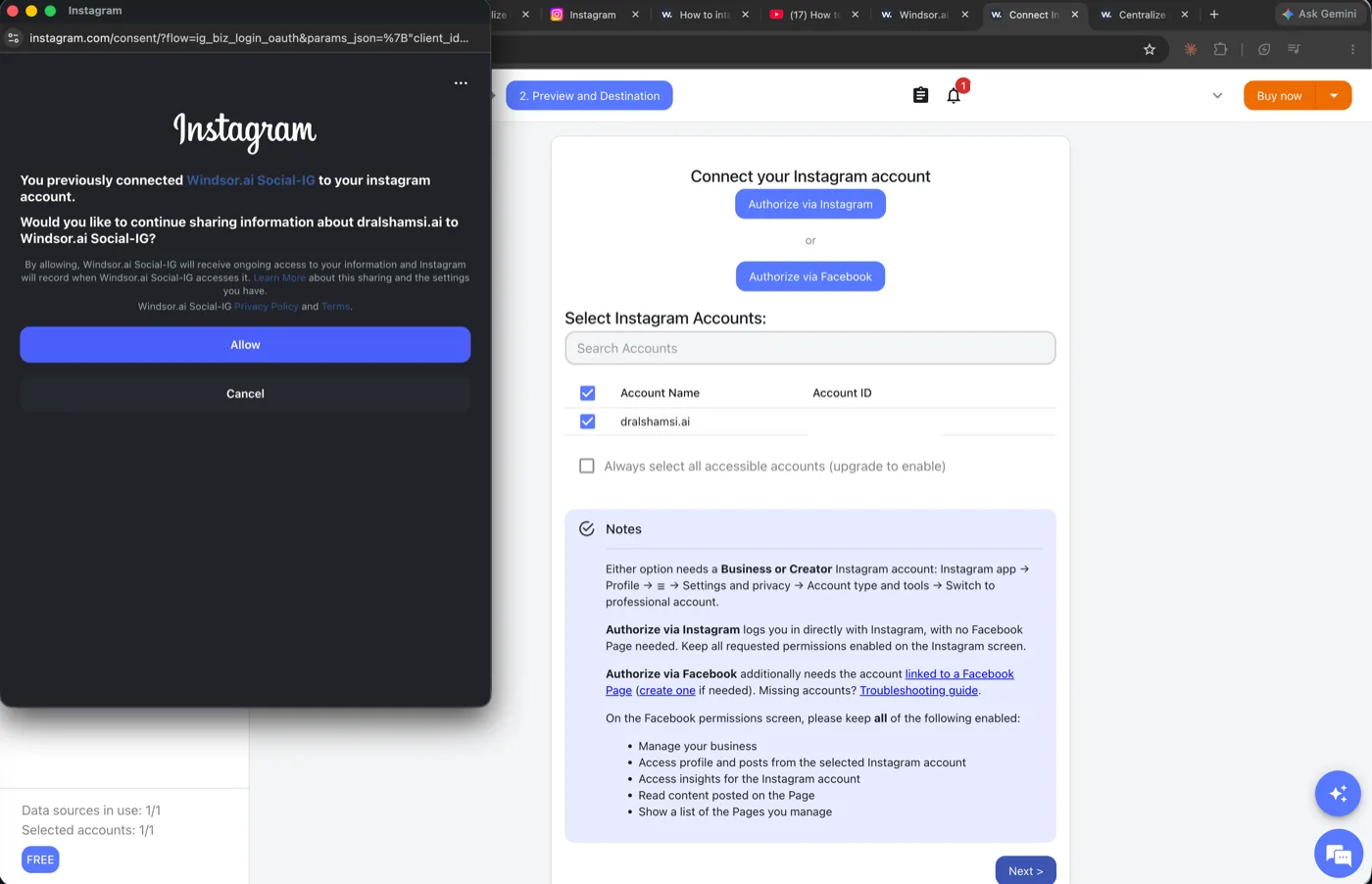
- Step 1.2: Choose how to authorize, then confirm the account you want in the accounts table.
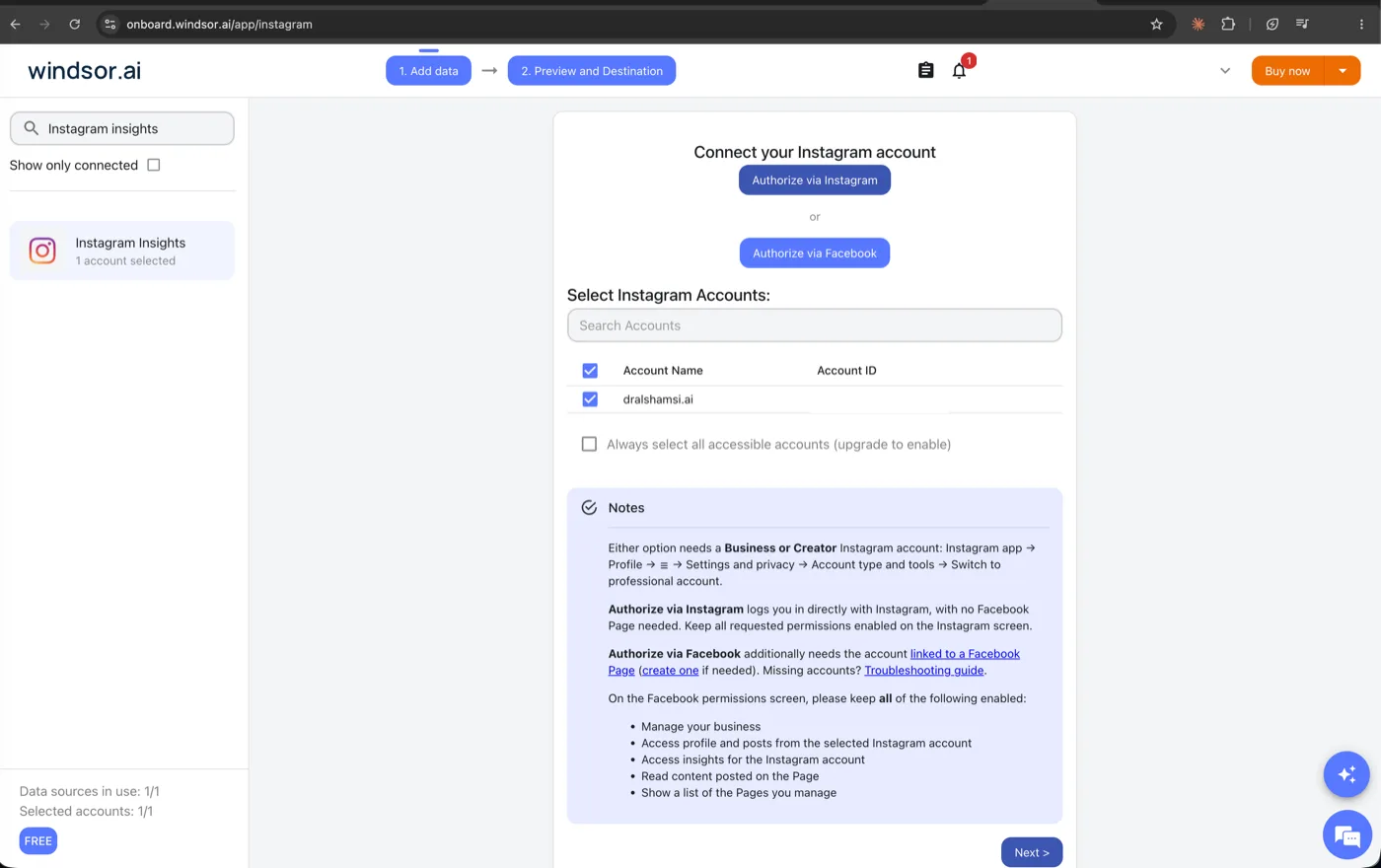
Required: your Instagram account must be a Business or Creator account for all the numbers (reach, views, audience) to appear. To switch, in the Instagram app go to Profile > menu (☰) > Settings and activity > under For professionals, tap Account type and tools > Switch to professional account > pick a category > choose Creator or Business. A private account becomes public when you switch. Authorize via Instagram does not need a Facebook Page; Authorize via Facebook needs the account linked to a Facebook Page. Keep every requested permission turned on.
Connect the Windsor.ai connector to Claude
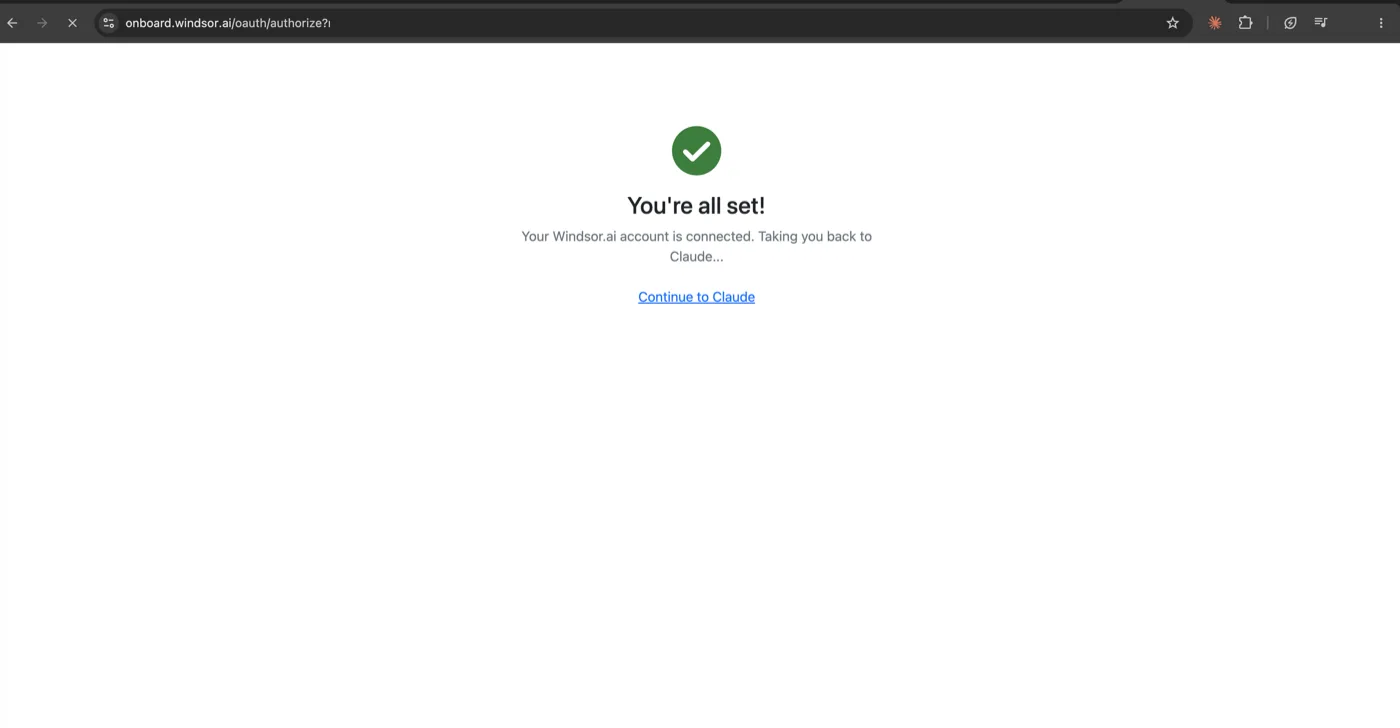
With Instagram linked to Windsor.ai, add Windsor.ai to Claude as a connector (Connector / MCP) so Claude can pull the data during a conversation.
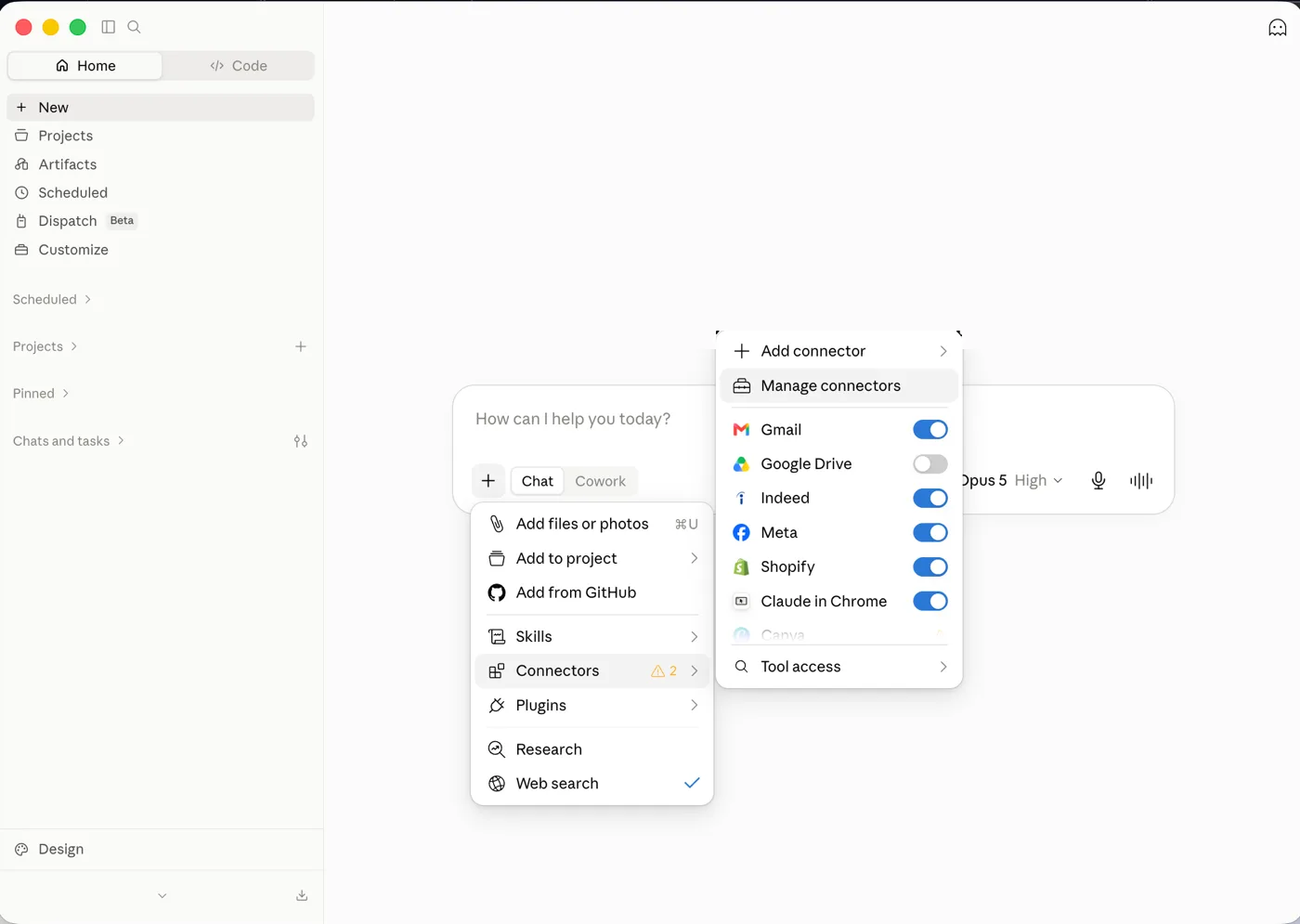
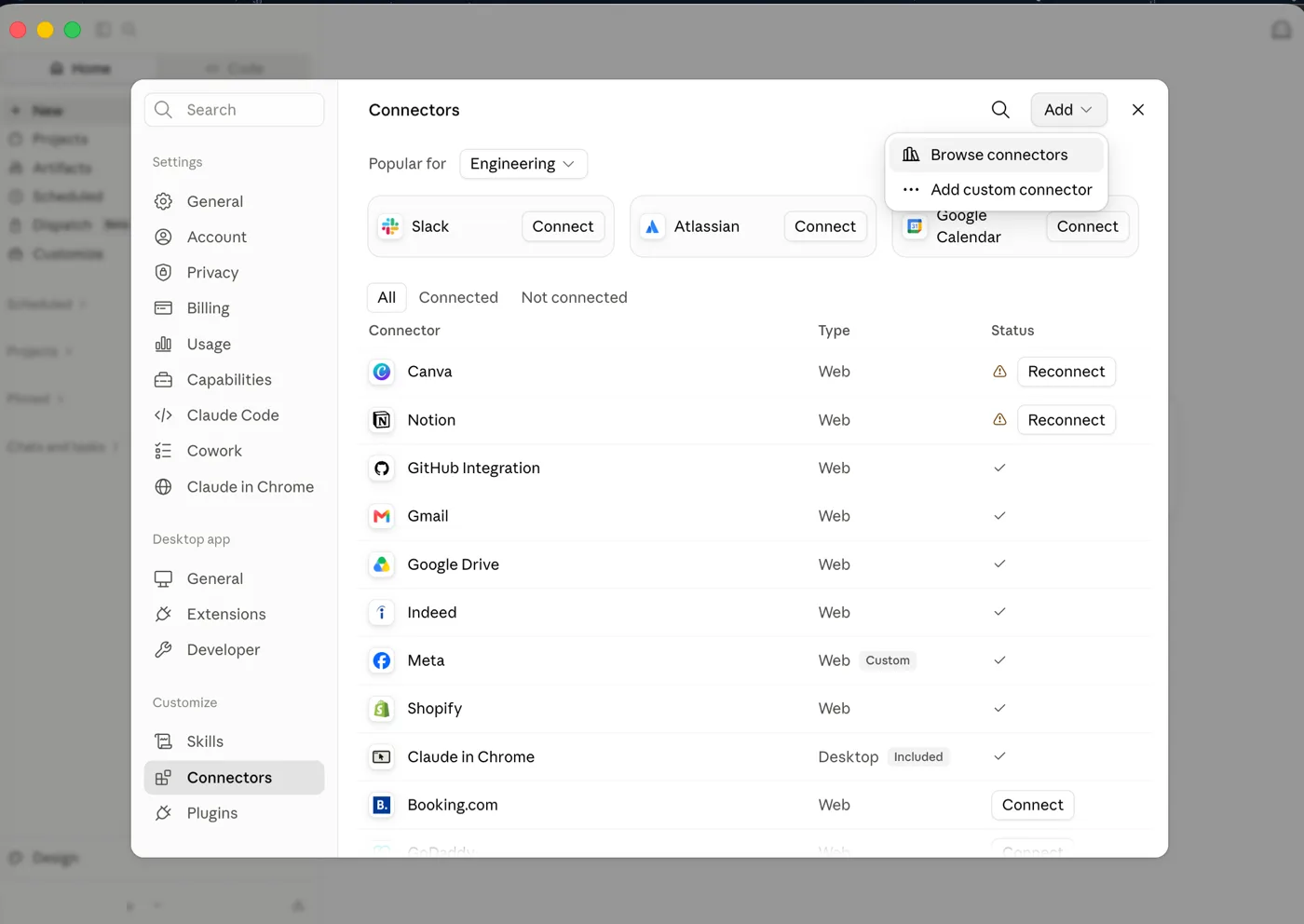
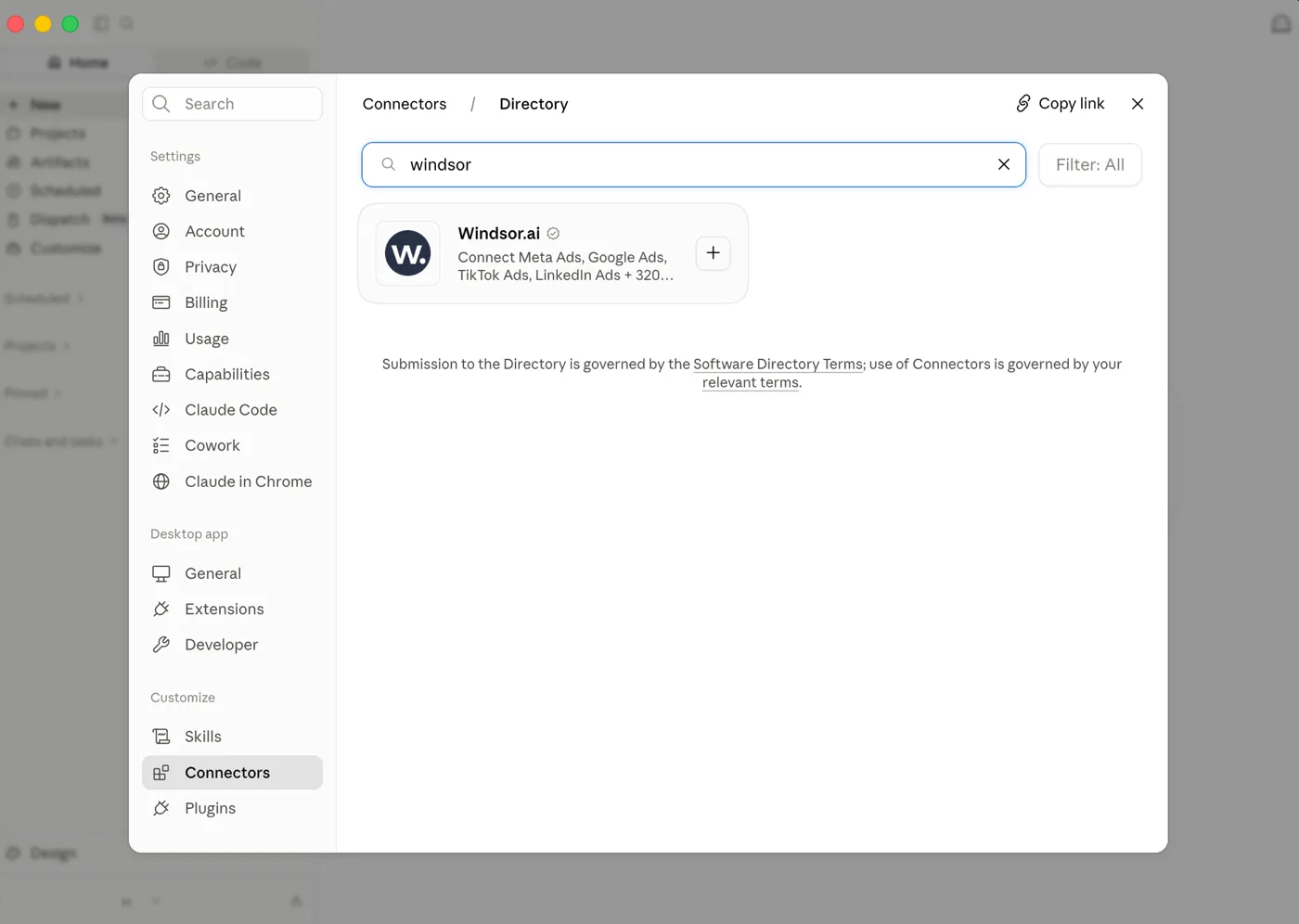
If Windsor.ai does not appear in the directory, add it as a custom connector from Customize > Connectors > Add > Add custom connector, name it Windsor.ai and paste the URL below. The Claude Free plan allows only one custom connector.
https://mcp.windsor.ai/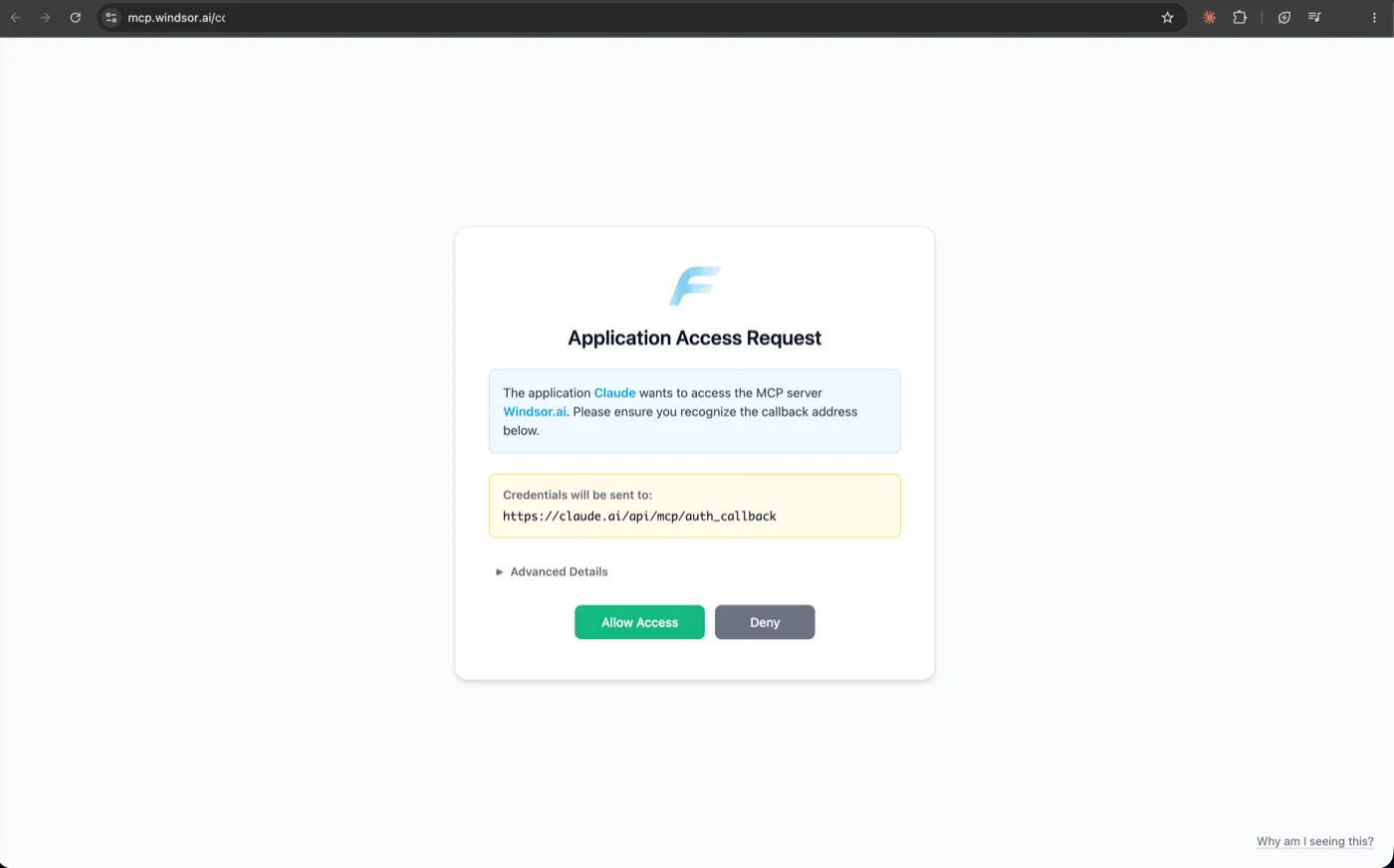
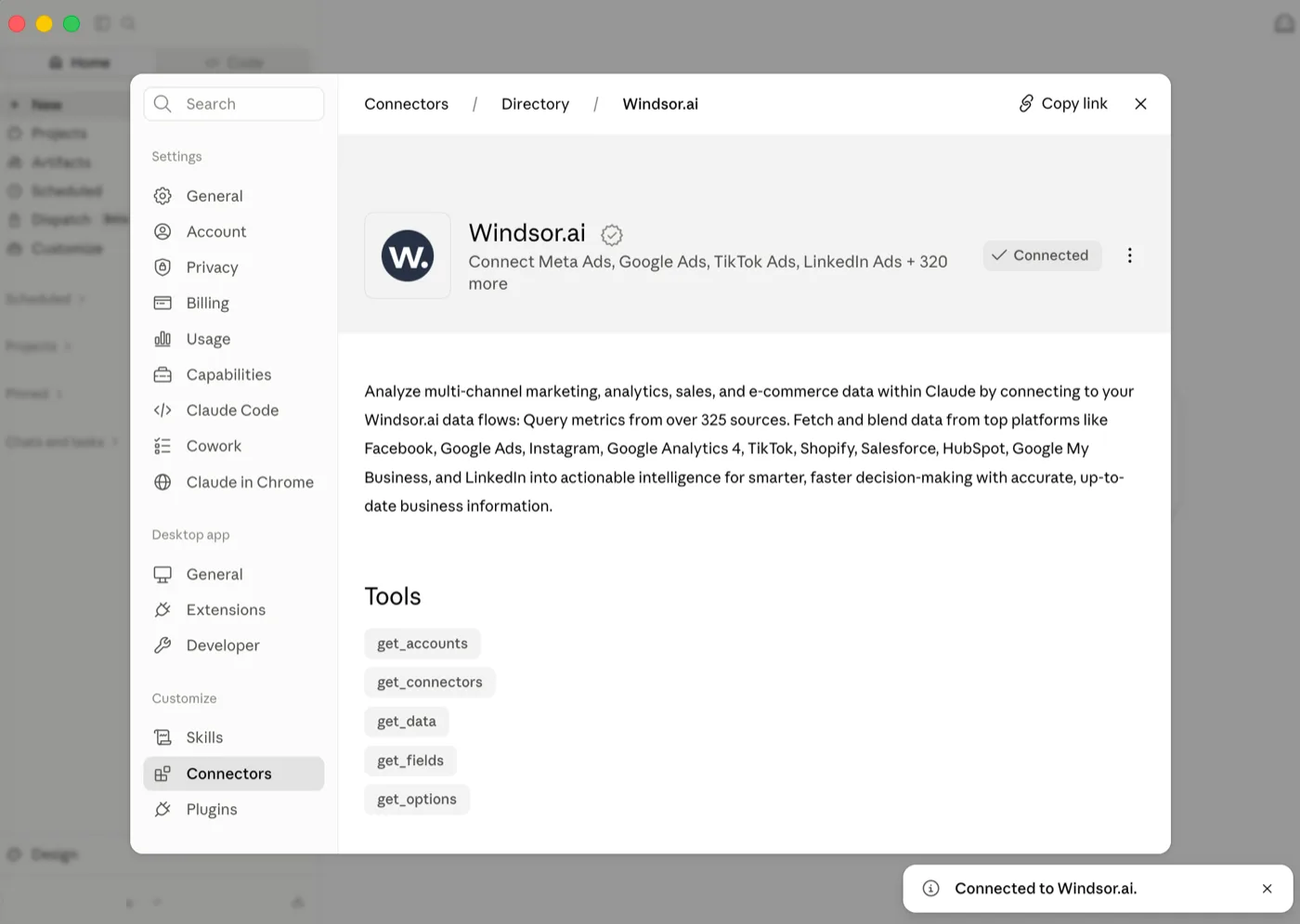
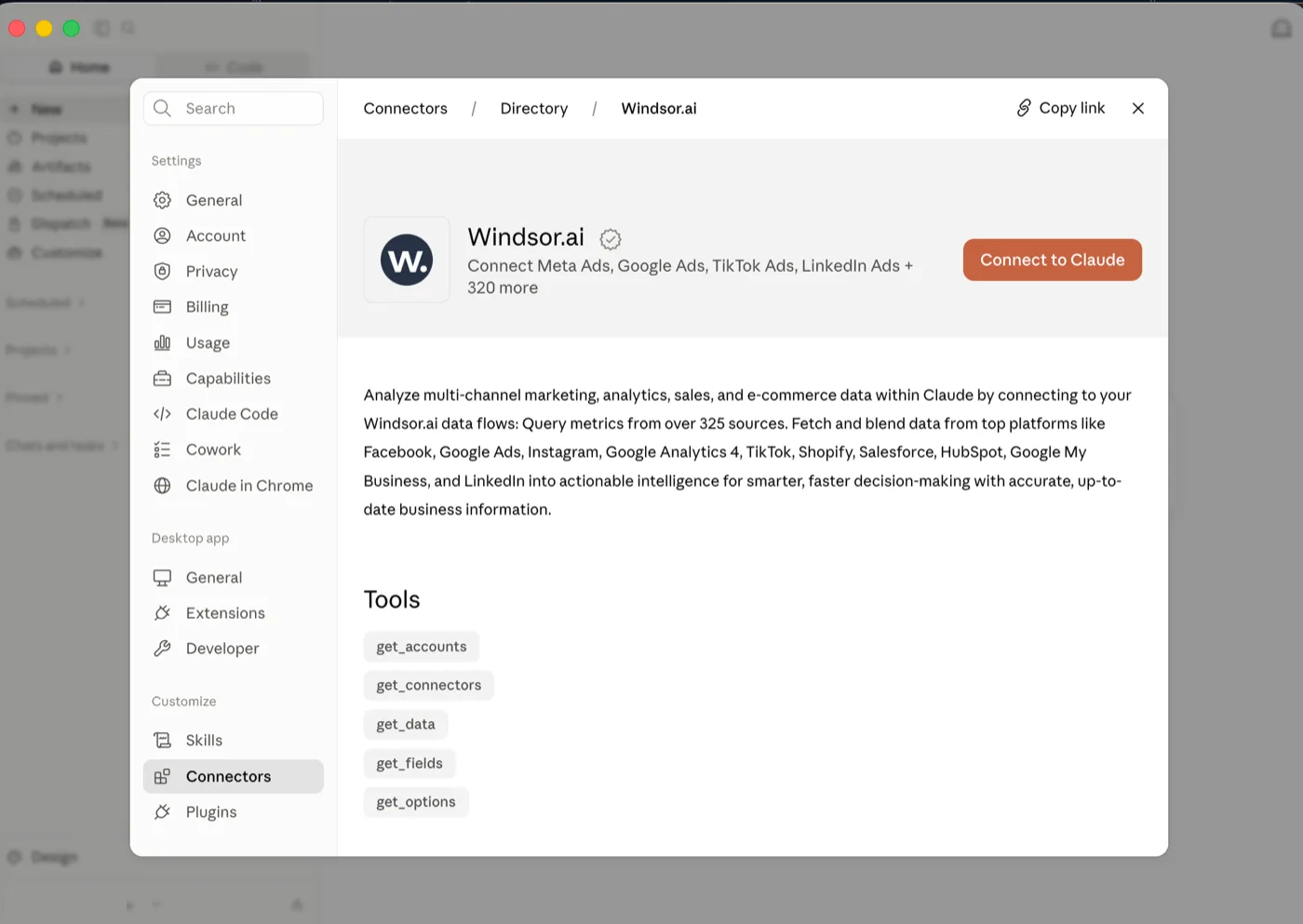
Checks that the instagram connector is linked and reads the account ID and name.
Lists the available field names (followers, reach, views...) before any data is pulled.
Pulls the actual data for the requested fields and date range. This is the tool the dashboard calls directly.
Careful: the Windsor.ai connector can read data and also make changes in linked accounts, such as publishing a post or writing a comment on Instagram. Review any action Claude proposes before you approve it.
Build the analytics dashboard with the ready-made prompt
With the connector in place, one step is left: copy a ready-made prompt, paste it into a new Claude conversation, and Claude builds a complete Instagram analytics dashboard for you.
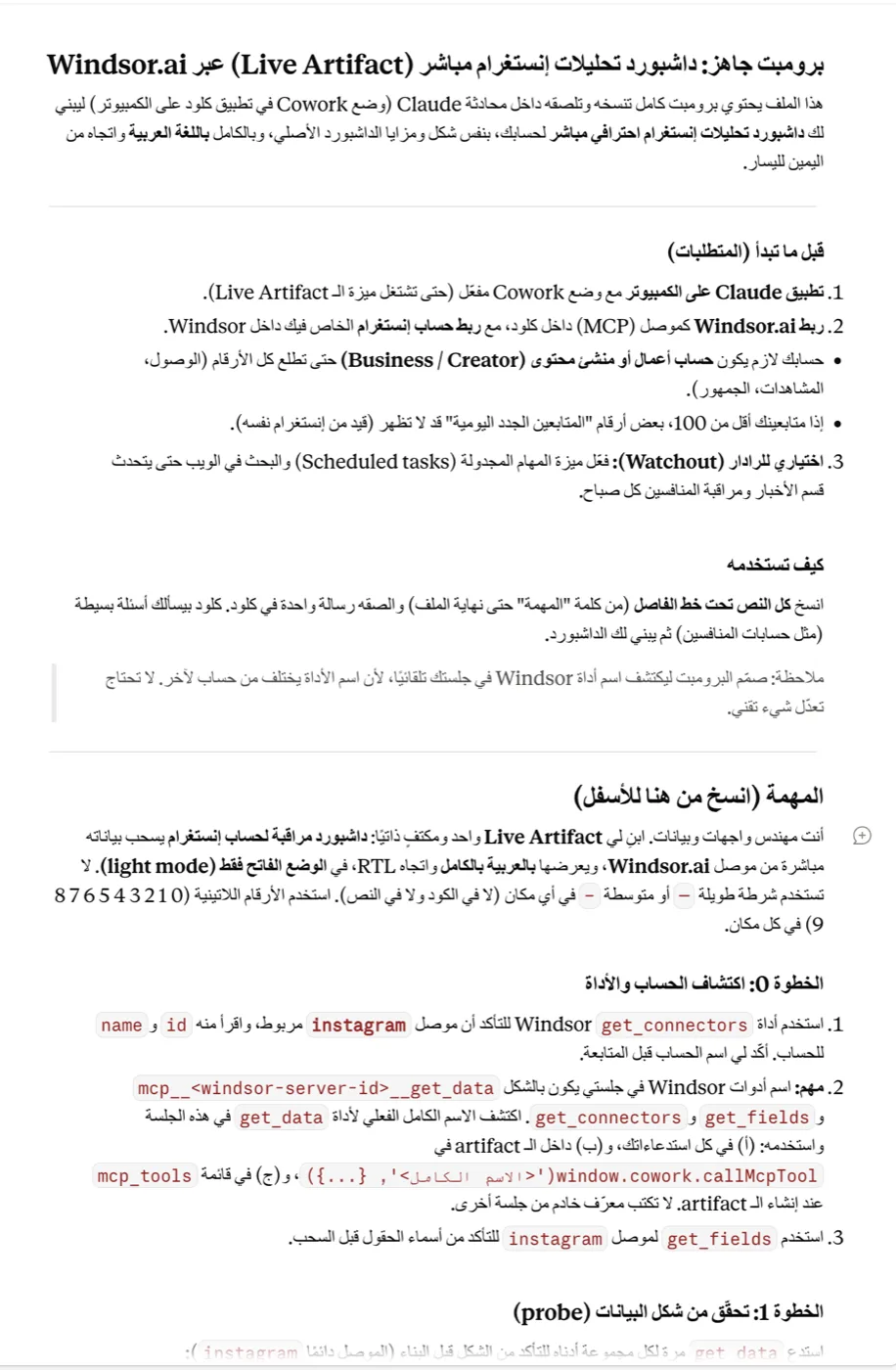
The prompt text is in a separate Library guide, Prompt for a live Instagram analytics dashboard via Windsor.ai. Copy all of it, from the "Task" heading to the end, before the next step.
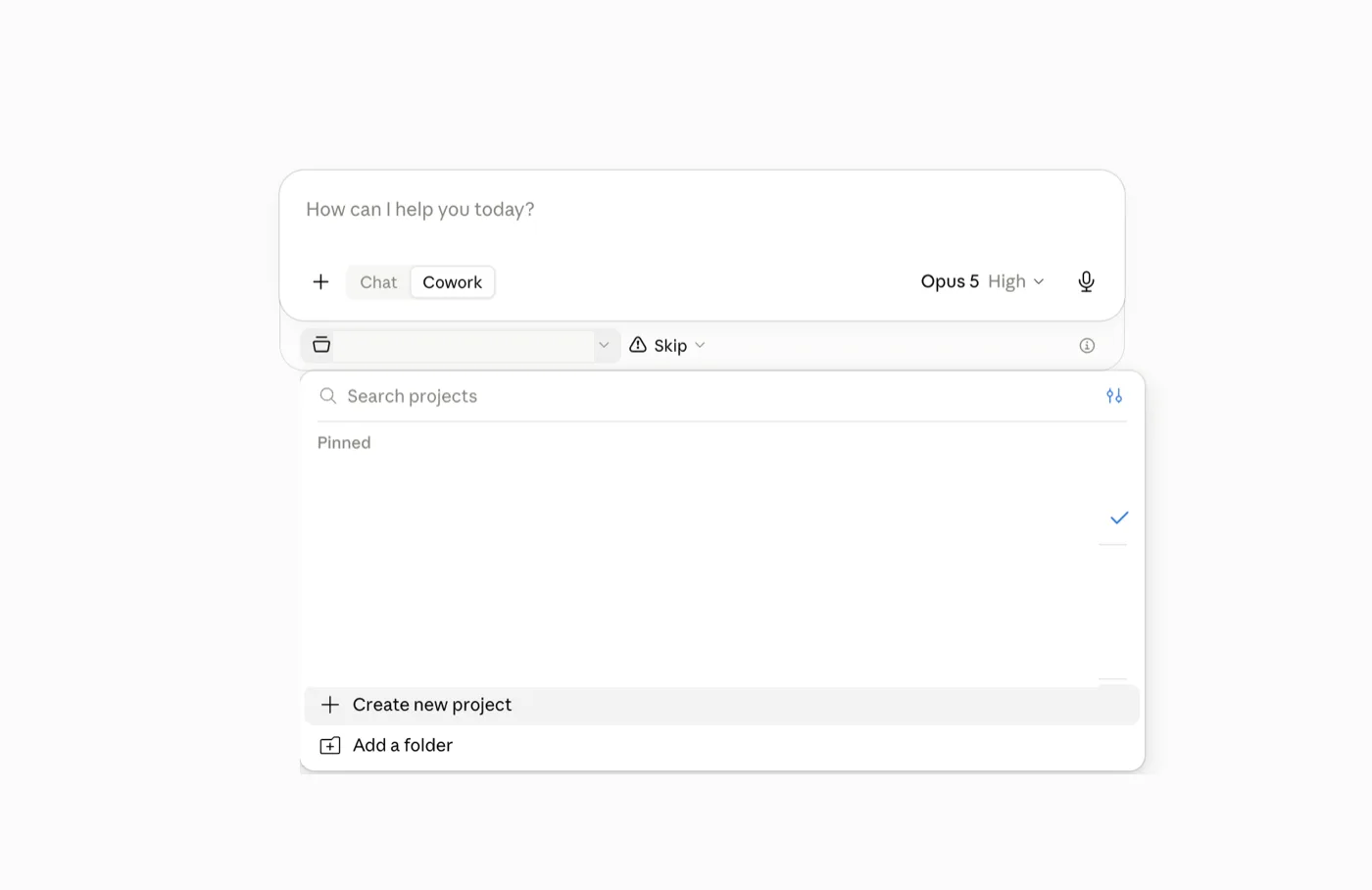
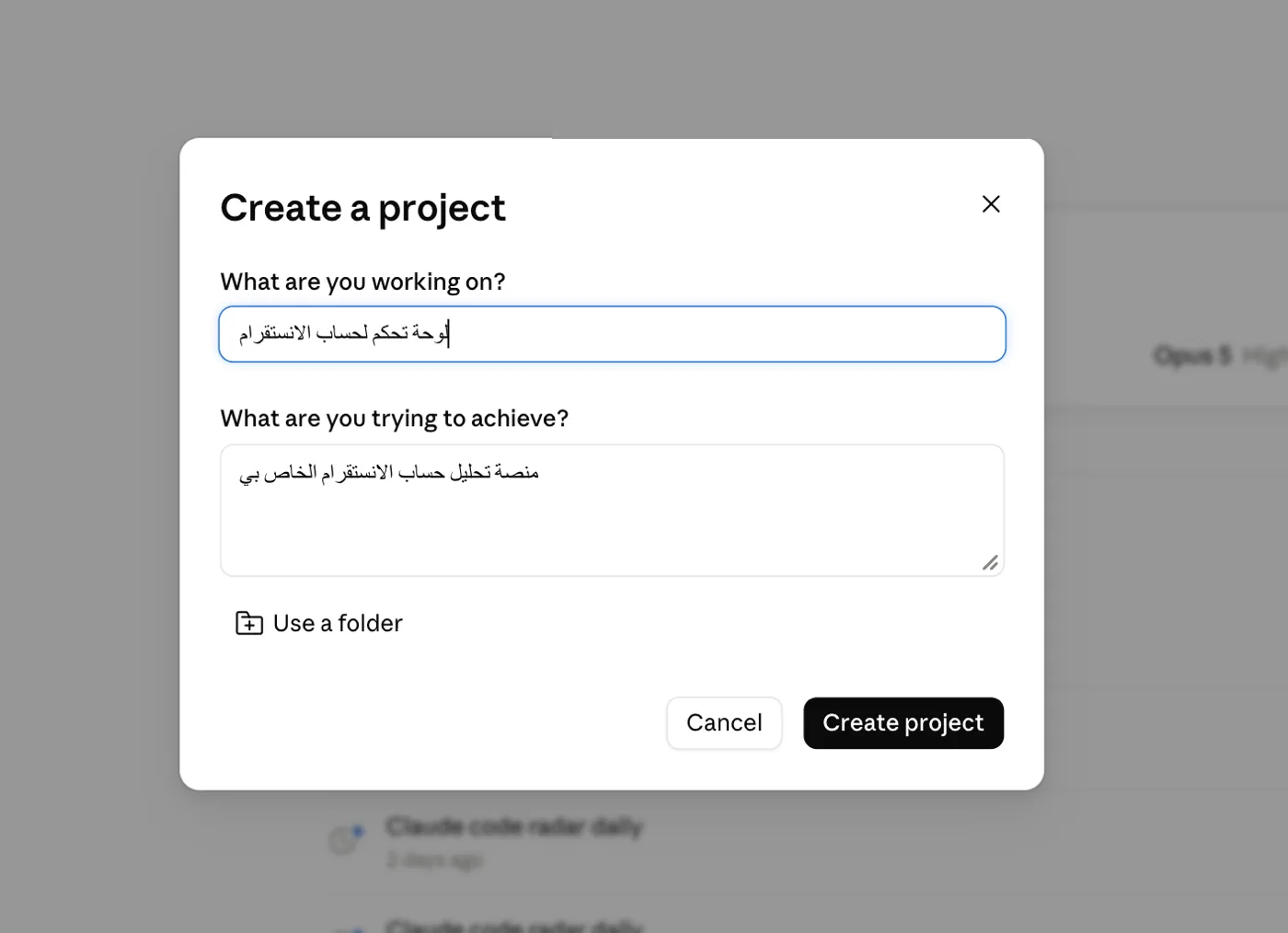
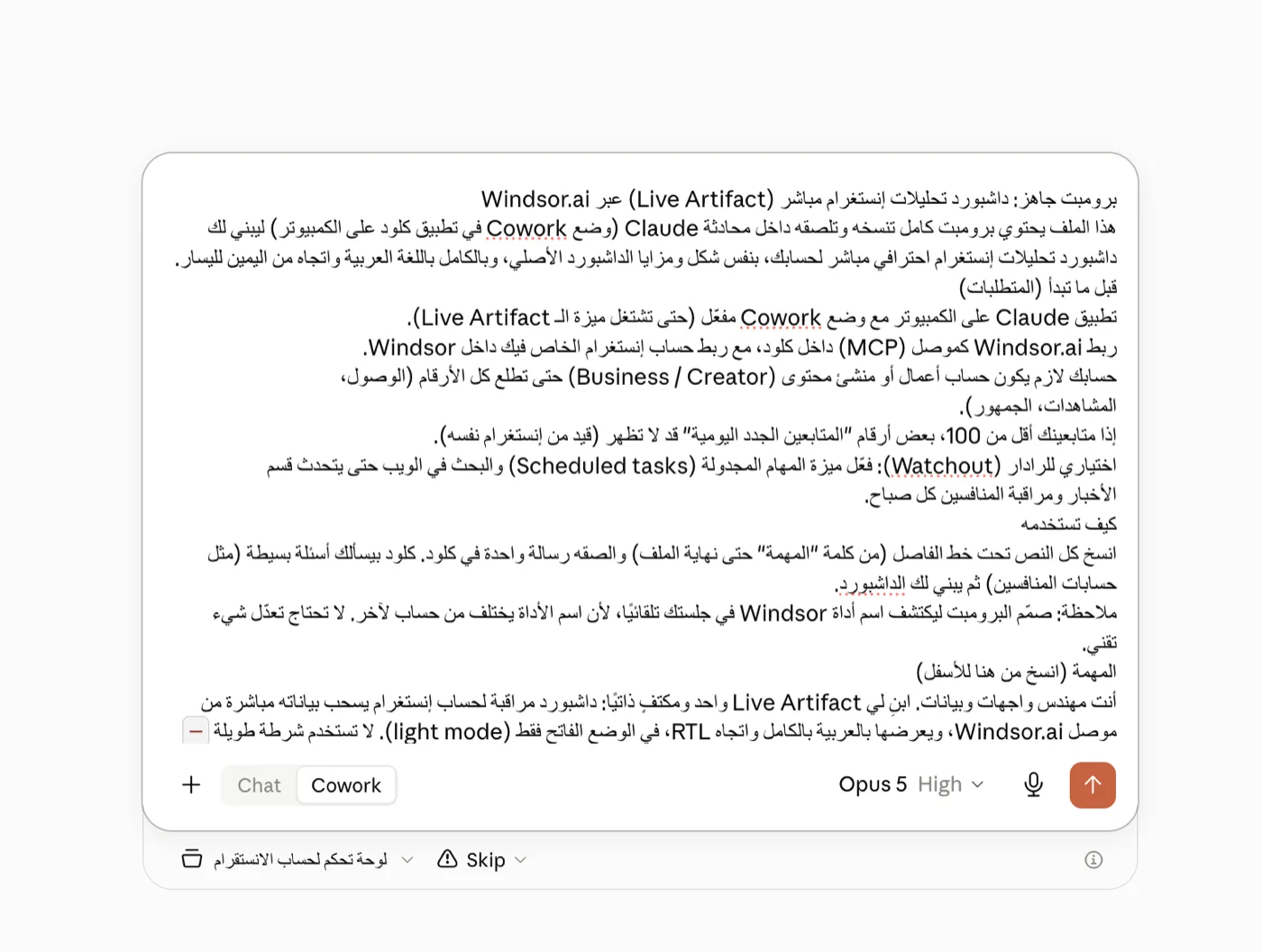
Note: before building, Claude asks for competitor accounts if you want the optional radar section, then builds the dashboard: KPIs, charts, top content, audience and a sortable table, all updating with the selected date range. The first time the dashboard uses the connector, Claude asks you to approve the tools it will use, and it saves the dashboard in the "Artifacts" tab in the sidebar.
Quick checklist
Sources: Windsor.ai pricing page and Claude integration docs, Claude Help Center (connectors, custom connectors, artifacts, Cowork), Instagram Help Center (switching to a professional account), and screenshots from Windsor.ai and the Claude app. Checked November 2026.
Want your team to use this at work?
I'm Abdulaziz Alshamsi, a certified AI trainer and consultant in Abu Dhabi. I train government and company teams to use AI in their daily work. Message me to discuss a session for your team.