


How to install Remotion skills in ChatGPT Work
Install the Remotion skills once in ChatGPT Work, then call the right one with @ when you edit a video.
In ChatGPT Work, install the Remotion skills once, then call the skill you need at the start of your request. The skills edit a Remotion project and its code. If all you have is an MP4 file, say first that you want to create a Remotion project or import the video.
Set up ChatGPT Work before installing
Use the ChatGPT desktop app (macOS, Windows or Linux) and pick Work with the toggle above the message box. ChatGPT Work is included in every plan, including Free; usage limits differ by plan. Below the message box is a permissions menu with 3 options: "Ask for approval", "Approve for me" and "Full access". If you are unsure, choose "Ask for approval" and approve the install command when ChatGPT asks.
Choose Work
This is the space for running tasks and working with files, not only for general chat.
Check permissions
"Full access" gives unrestricted access to the internet and any file on your computer. Use it only if you trust the task and the project folder.
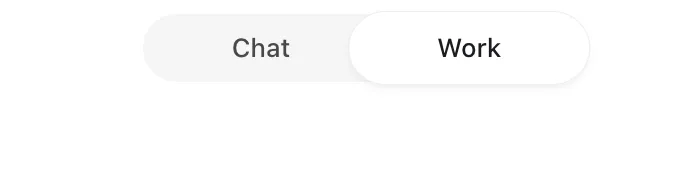
Work before you run the install command.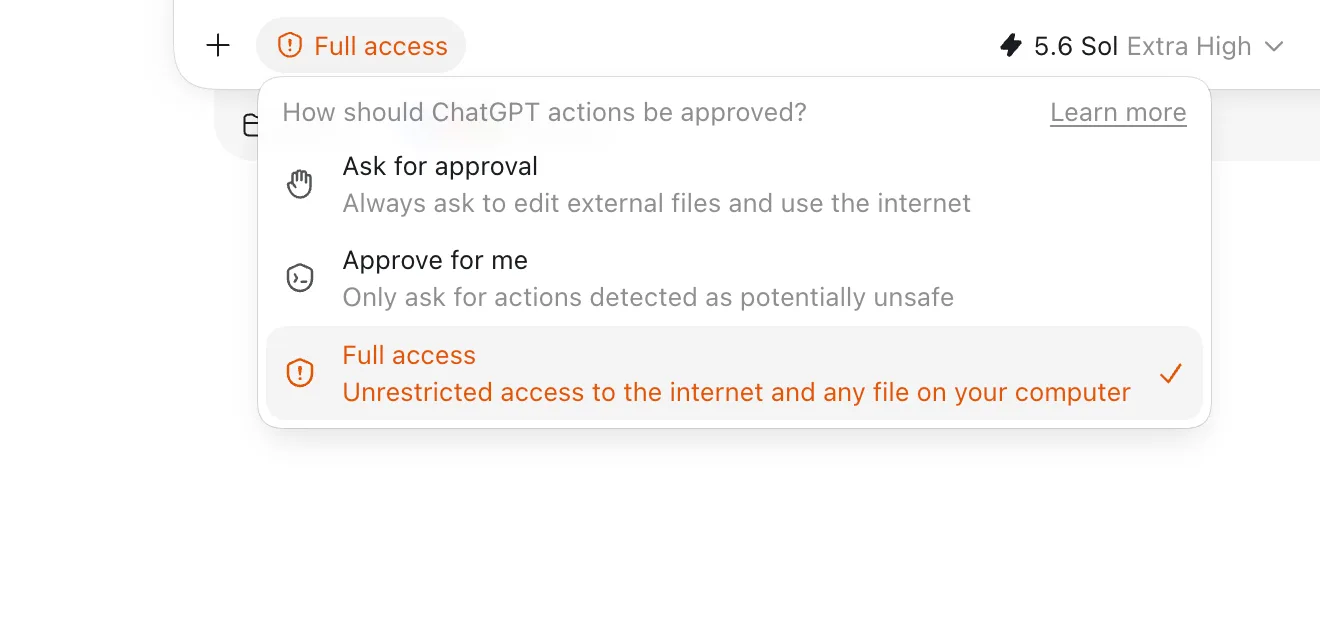
Install the Remotion skills in ChatGPT Work
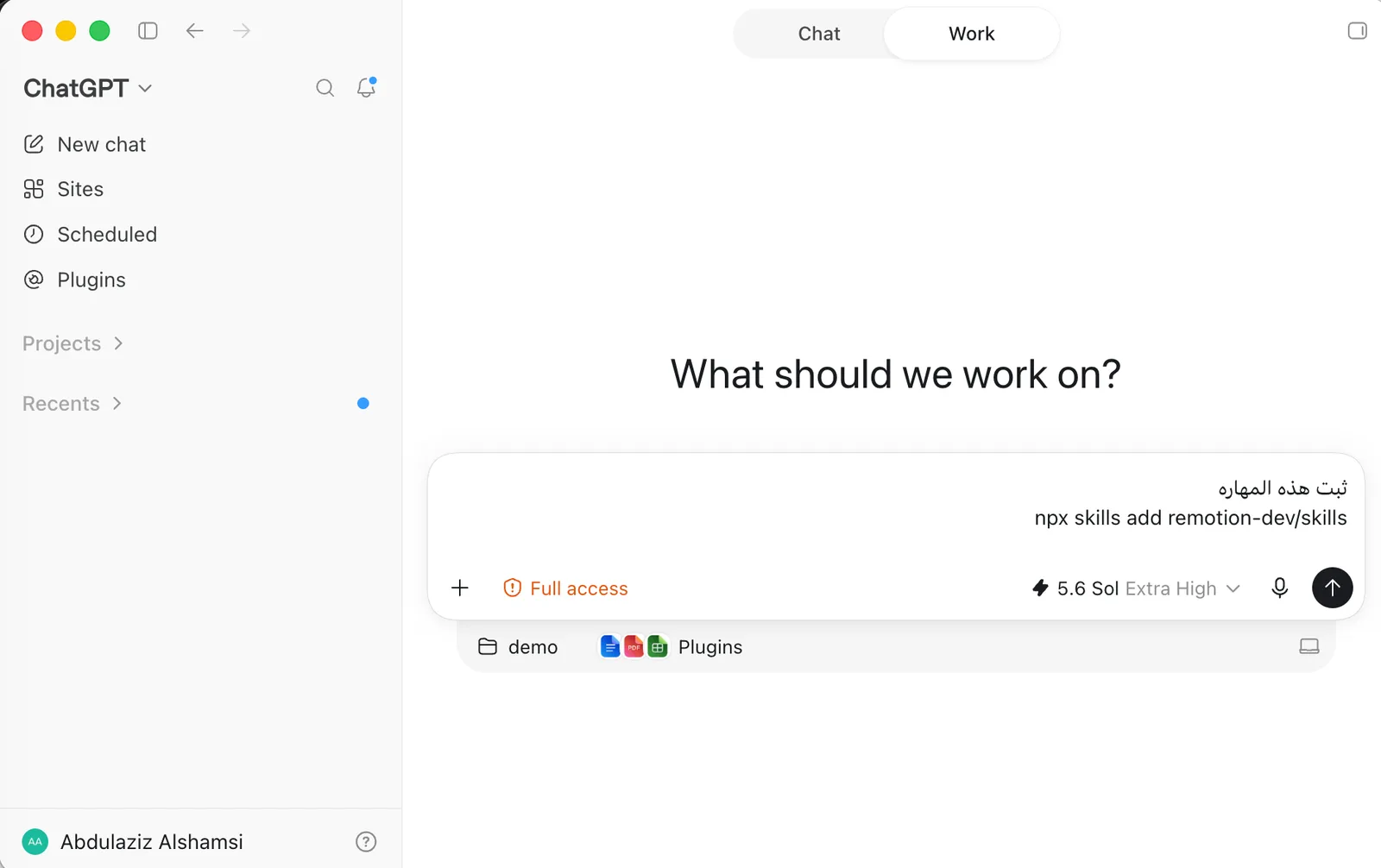
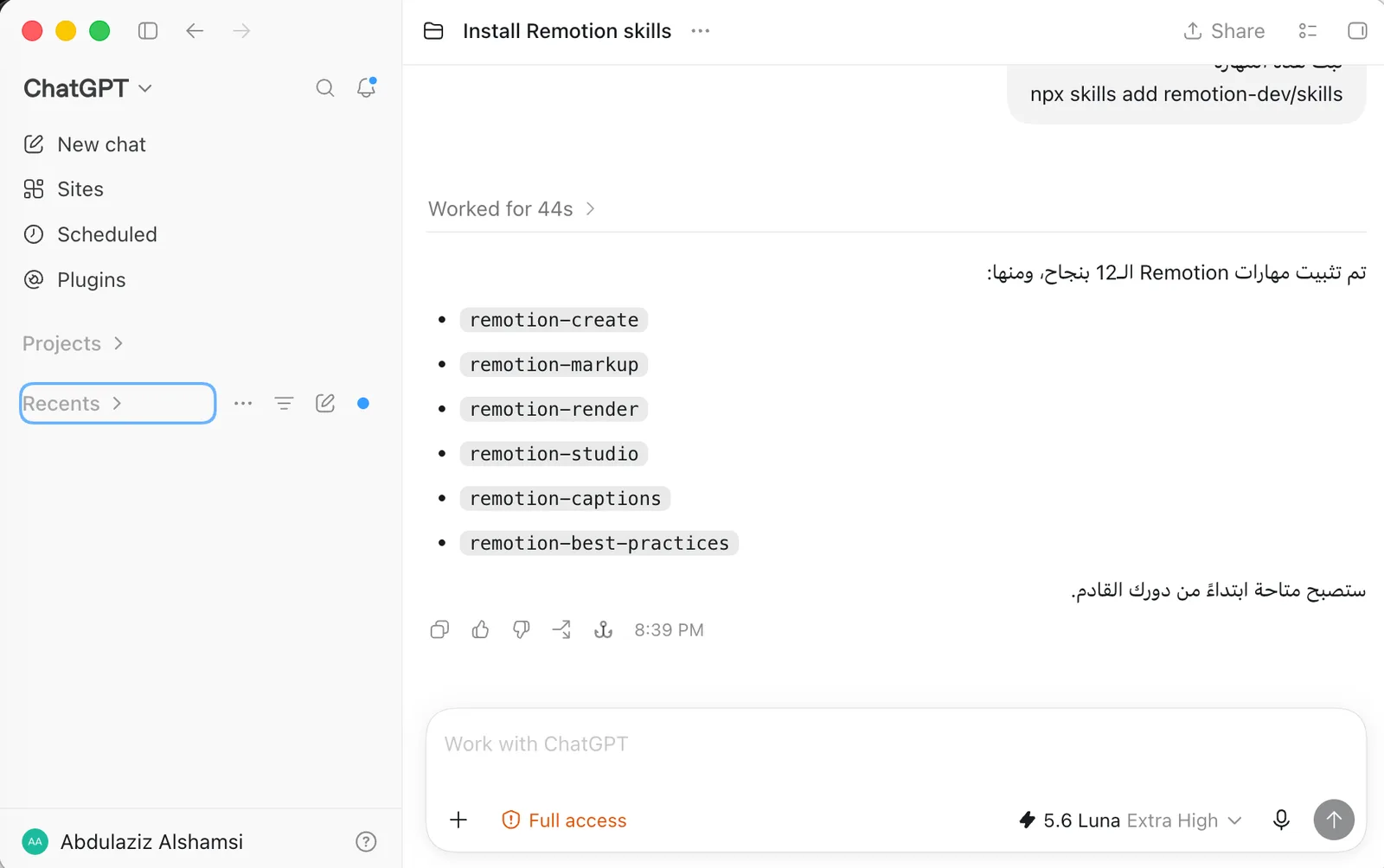
Type this command as it is in Work to add the Remotion skills to your available skills:
npx skills add remotion-dev/skillsIf you are working inside an existing Remotion project, you can use this command instead:
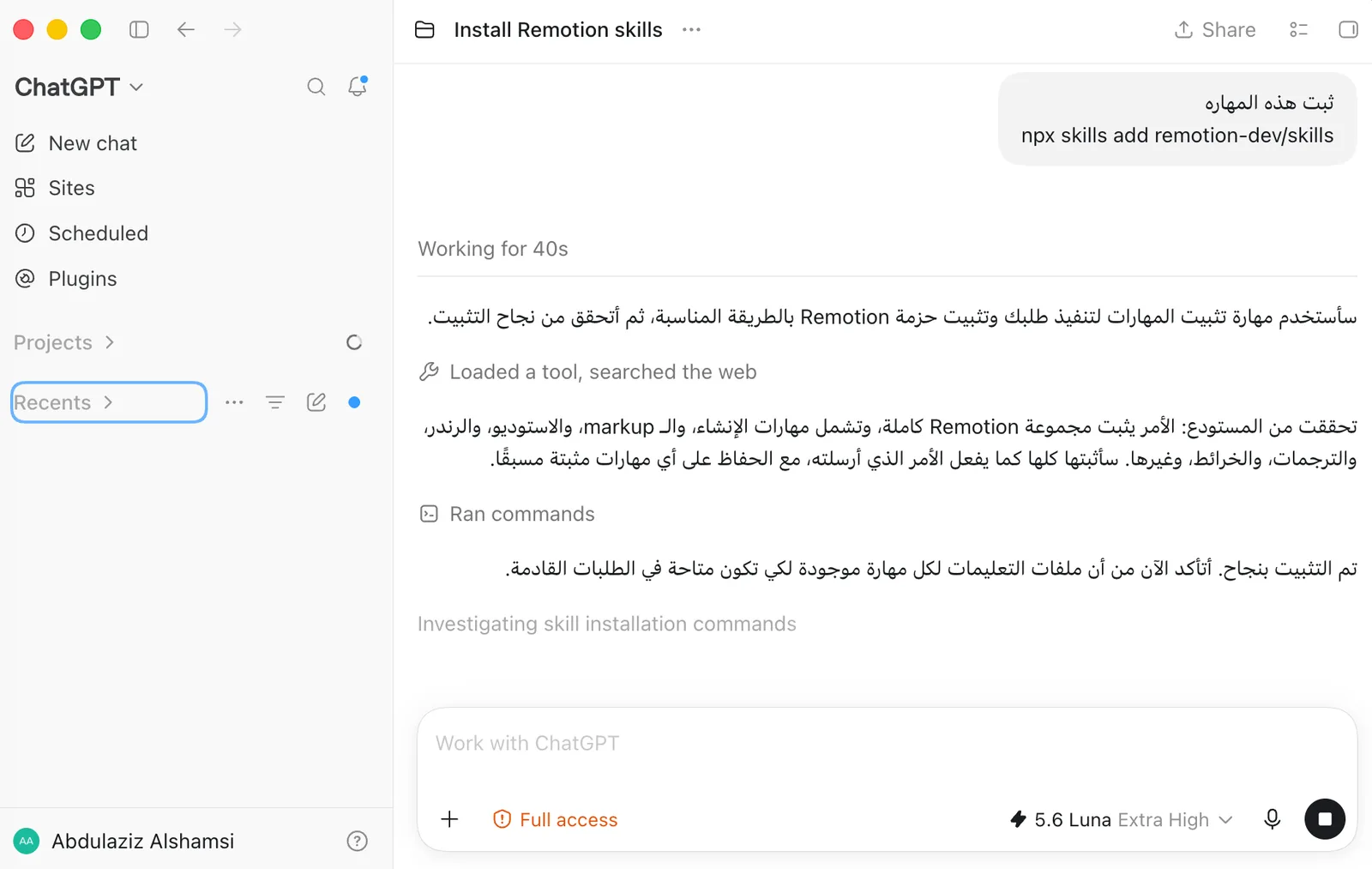
npx remotion skills addDo not reinstall every time. Once the install succeeds, just name the skill at the start of your request.
Success message
Confirms the install finished.
A set of skills
Available in your next requests.
Start editing
Name the skill first.
Wait for the success message and meet the set
When the install finishes, a message confirms that the Remotion skills are available in your next requests. The set currently has 13 skills. These are the ones you are likely to use most:
Create: start a Remotion project or add new compositions and scenes.
Edit: change the design, text, animation, colors and audio.
Export: render the final video with the settings you need.
Preview: open the preview and review scenes before exporting.
Captions: add captions or change their timing and look.
Pick for me: use it when you do not know which skill fits the task.
Call the skill at the start of a video edit request
Type @ in the message box and pick the skill from the list, for example @remotion-markup, then describe the result you want. You can also mention the skill in plain words; ChatGPT picks a skill on its own when your request matches its description.
@remotion-markup Edit the video in the current project: make the title appear within the first 3 seconds, and add a smooth transition between scenes.@remotion-markup
To edit design, text, animation, colors and audio.
@remotion-multimedia
To read video and audio file data, such as duration and dimensions, and handle media files in the browser (with Mediabunny).
@remotion-captions
To add or edit captions.
@remotion-studio · @remotion-render
To preview the scenes, then export the final video.
Quick checklist
npx skills add remotion-dev/skills once.@remotion-markup.Sources: Remotion Agent Skills docs on remotion.dev and the remotion-dev/skills repository on GitHub; ChatGPT docs on learn.chatgpt.com (Permissions, Build skills, ChatGPT app, Pricing). Checked November 2026.
Want your team to use this at work?
I'm Abdulaziz Alshamsi, a certified AI trainer and consultant in Abu Dhabi. I train government and company teams to use AI in their daily work. Message me to discuss a session for your team.