


Run Ollama on Your Computer
From downloading the app to pulling your first model and starting a chat that runs on your own machine.
The app and a model. Ollama runs the model, and the model is what reads your question and generates the answer. Installing the app alone is not enough to start a local chat.
The quick path
- Download the official app and install it. Windows and macOS steps are in section 3.
- Start with the model
qwen3:1.7b. Its download size on the site is about 1.4 GB. The comparison is in section 4. - Pick it from the model list and type your first question. In the desktop app, the download starts when you send the first message.
- Wait for the download to finish and the reply to arrive. Choosing, downloading and testing the model are shown with screenshots in sections 5 to 7.
Prepare your computer
- An internet connection to download the app and the model the first time.
- Free disk space for the app and the models, and available memory while it runs.
- Windows 10 version 22H2 or later, or macOS 14 or later.
- If it is a work computer, check that you are allowed to install and use the app.
Scope: this guide covers local chat on your computer. You do not need a cloud subscription or an API key for this path. The app screenshots were taken on macOS with Ollama 0.35.1; the same buttons exist in version 0.40.16 (November 2026).
Download and install the app
Open ollama.com/download and choose your operating system. To download the installer file, click Download manually under the install command.
On Windows
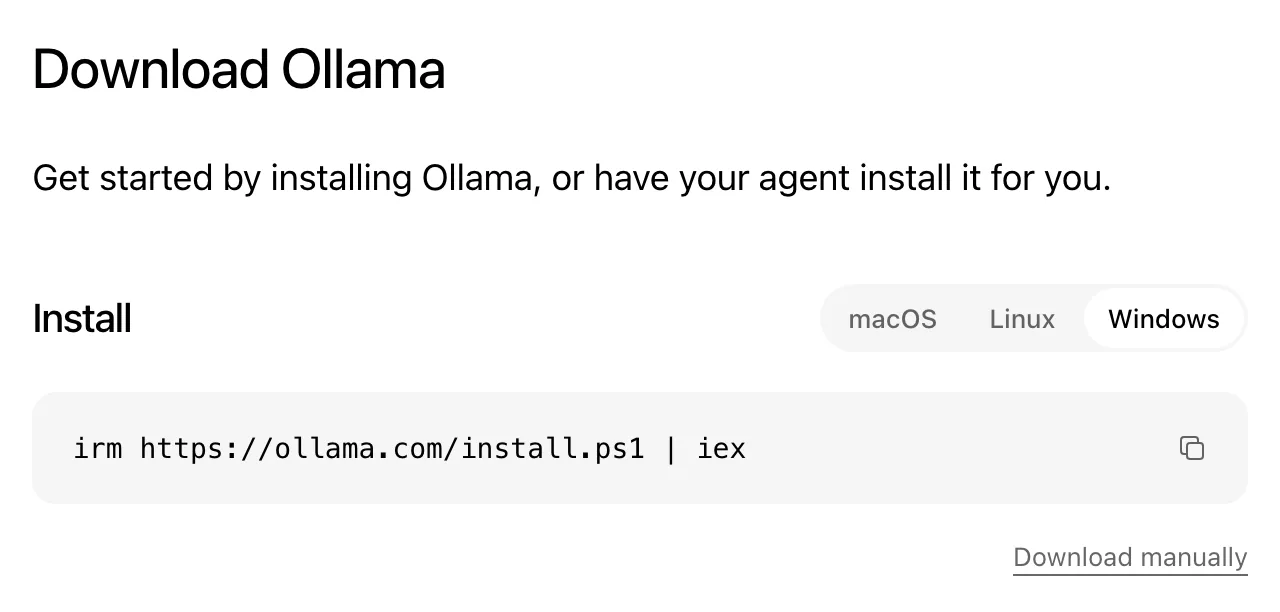
- Download
OllamaSetup.exe. - Open it from your Downloads folder. Click Install if it appears, and wait for the installation to finish.
- Open Ollama from the Start menu. The app may keep running in the background after installation.
Official requirement: Windows 10 22H2 or later. The app itself needs at least 4 GB of disk space, plus space for the models.
On macOS
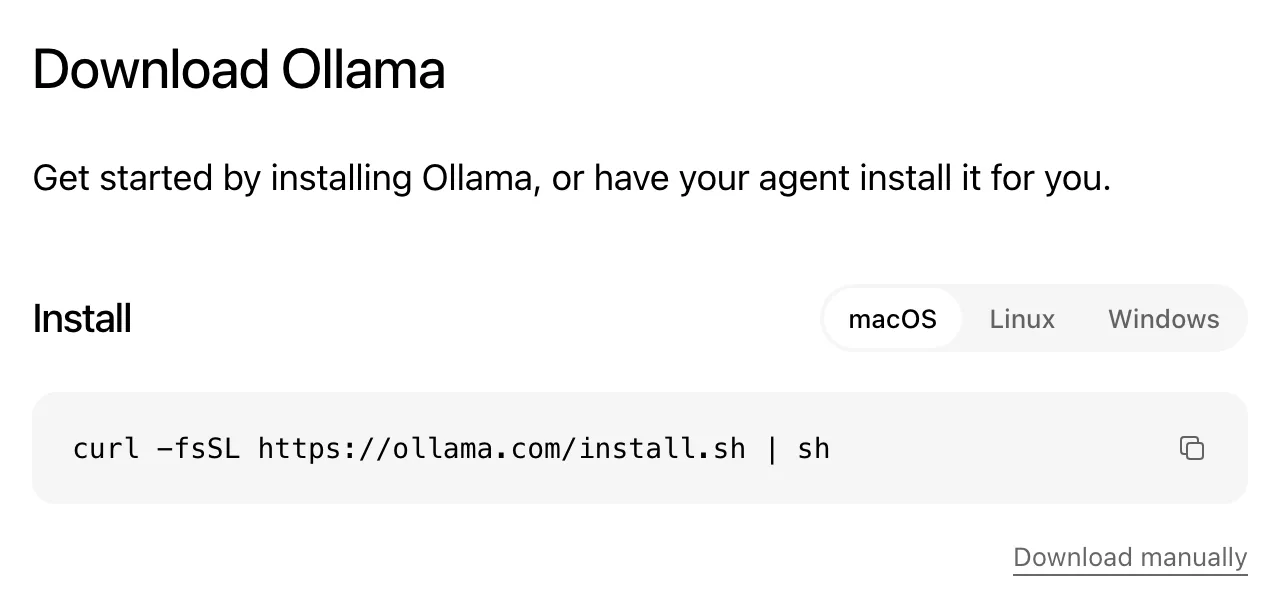
- Download
Ollama.dmg. - Open the downloaded file. Drag the Ollama icon into the Applications folder.
- Open Ollama from Applications. If macOS shows its usual warning for an app downloaded from the internet, choose Open and follow the setup steps.
Official requirement: macOS Sonoma 14 or later. Apple M-series Macs get hardware acceleration; Intel Macs run on the CPU only and can be slower.
How much memory does your computer have?
- Windows: Settings > System > About, then look for "Installed RAM".
- macOS: Apple menu > About This Mac, then read "Memory".
Memory (RAM) is not the same as storage. You will use this number to choose a model, not only to judge the download size.
Choose a model that fits your computer
For your first try, use qwen3:1.7b. It was chosen for its small download and because the Qwen3 family supports 119 languages, including Arabic. It is a starting point for learning; check its wording and facts before you use them.
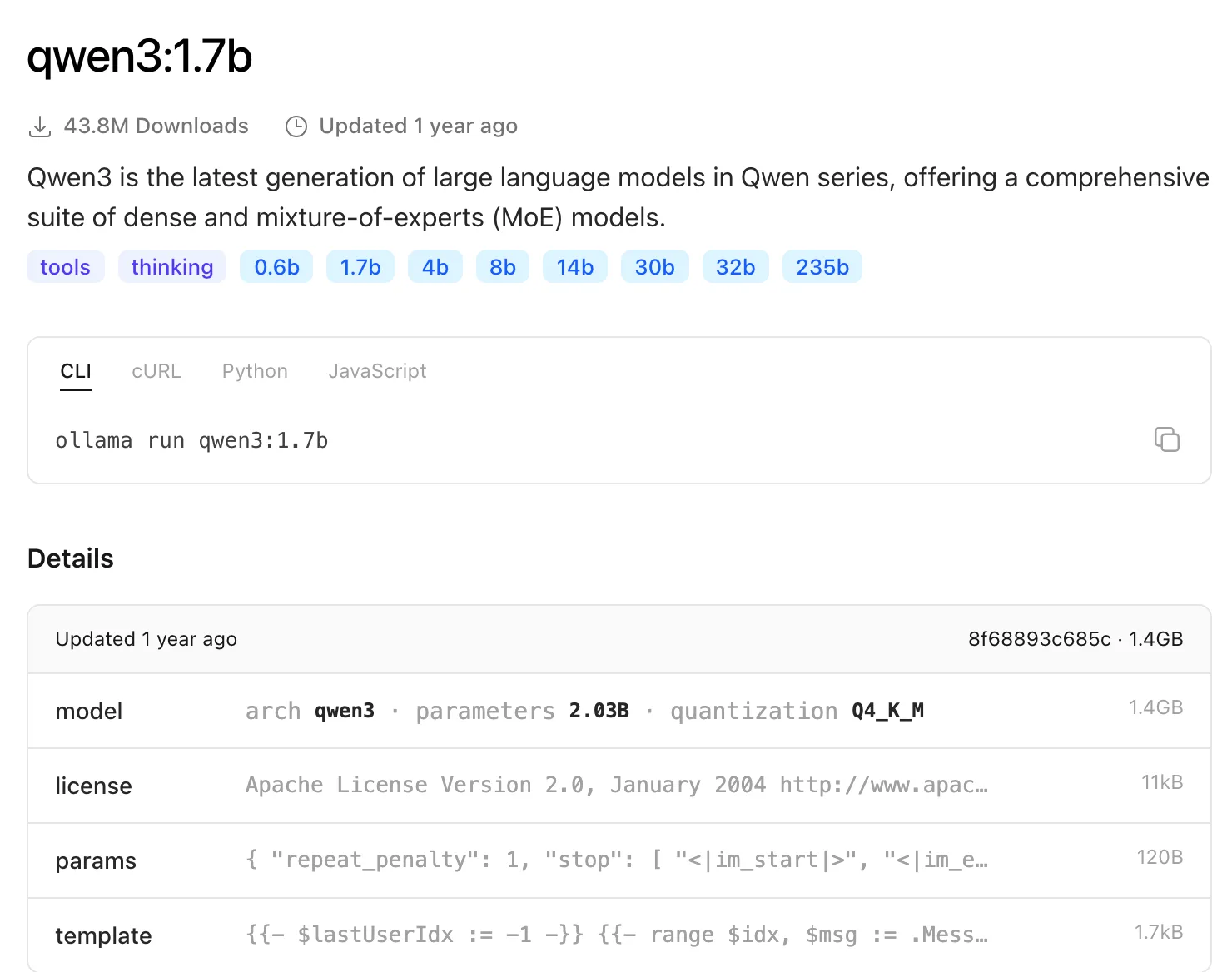
| Local model | Download (approx.) | When to use it |
|---|---|---|
qwen3:1.7b | 1.4 GB | A light first test and short questions. |
qwen3:4b | 2.5 GB | Try it after the smaller one works, if your memory allows. |
qwen3:8b | 5.2 GB | A larger option that needs more space and memory. |
These names are examples for this guide, not a list of the newest models or a ranking. Type the full name to get the size you mean.
Download size is not the memory you need. As a rough starting point only: with 8 GB of memory start with 1.7b, and with 16 GB try 4b. These are not official requirements or a speed guarantee; open apps, chat length and processor power all affect performance.
If a name ends in cloud: that model runs on external servers. Choose a local model if you want it to run on your computer.
Find the model in the app
- Open a new chat. If none is open, click the pencil icon at the top of the app.
- Click the model name below the message box. The model list opens with a search field.
- Type
qwen3:1.7bin "Find model...". Choose the result that matches the name exactly; it shows a download icon if the model is not on your computer yet.
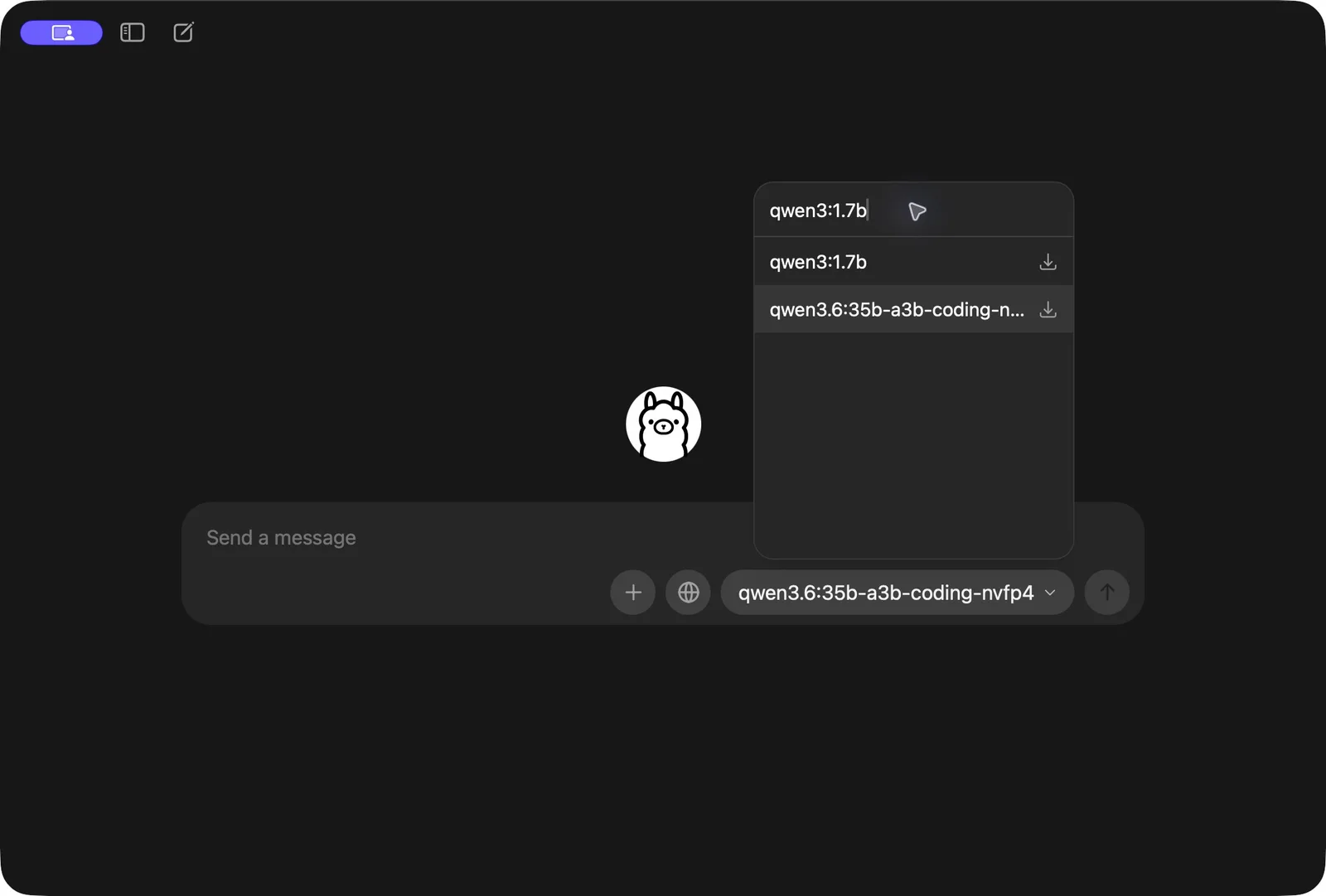
The model family name in this example.
Selects the small version this guide uses. Do not confuse this tag with the download size shown in GB.
How you know this step worked: the name below the message box changes to qwen3:1.7b. In the version shown, choosing the name does not start the download; it starts when you send the first message.
Screenshot from the installed app: Ollama 0.35.1 on macOS. If your app looks different, use the command-line method in section 8.
Send a question and wait for the download
After choosing the model, type a short test question and click the send arrow or press Enter. If the model is not downloaded yet, the download progress appears in the chat.
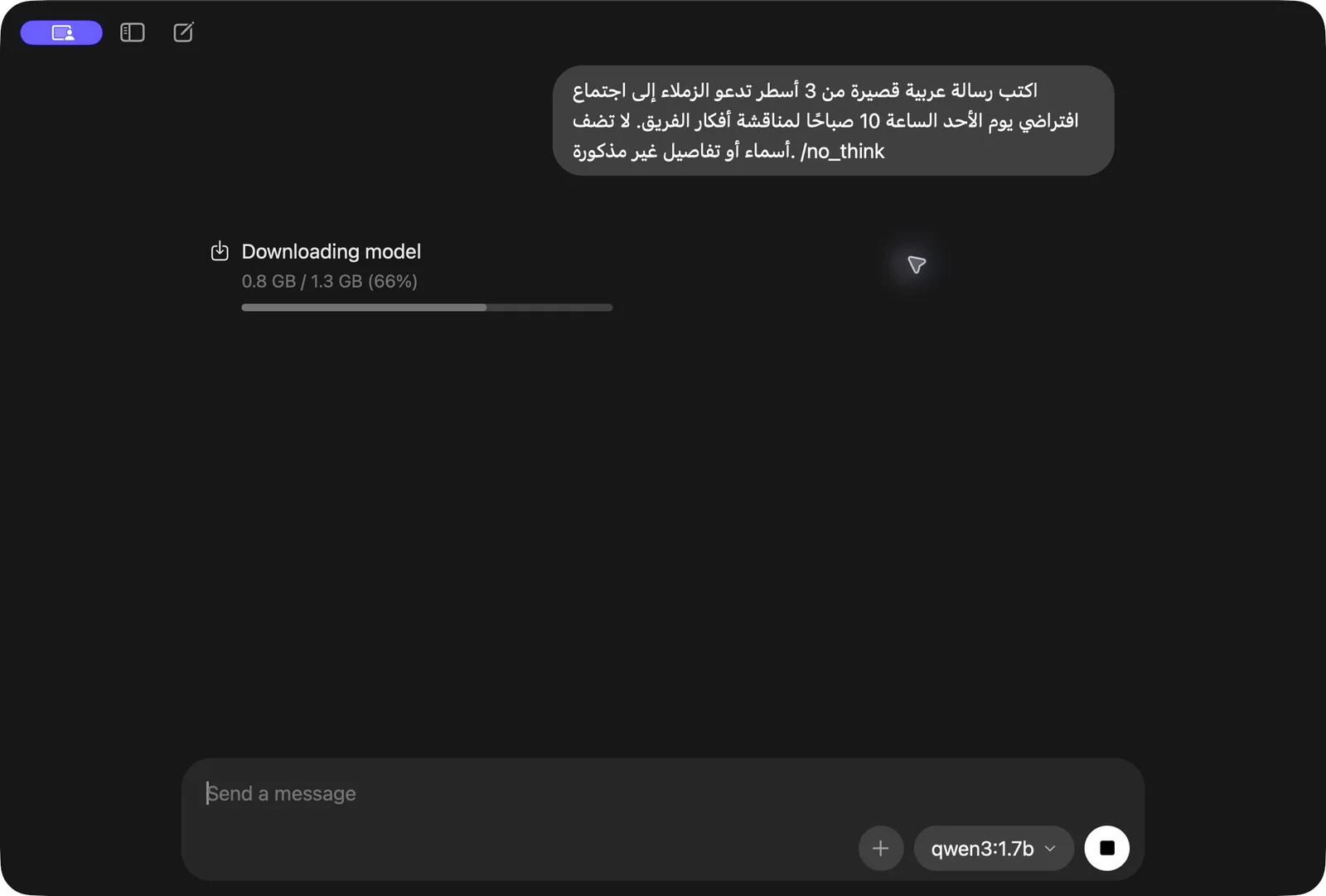
- Let the download finish. Stay connected to the internet and wait for the percentage to complete. The time depends on your connection speed and the model size.
- Wait for the first reply. After the download, the app loads the model into memory and starts answering. You may see "Thinking…" before the final reply; wait, or click stop if you want to cancel the request.
- Use it again without downloading. The model stays saved on your computer and you can choose it in new chats. You only download again if you pick a new model or delete this one.
Why 1.3 GB in the screenshot and 1.4 GB on the website? The app and the site can show the size differently because of how they calculate and round it. What matters is that the model name matches and the download completes.
Check that the chat works
Start with a simple request that contains no personal or work information. This tests that it runs; then try bigger tasks step by step.
Test prompt
Reply with only the word: Hello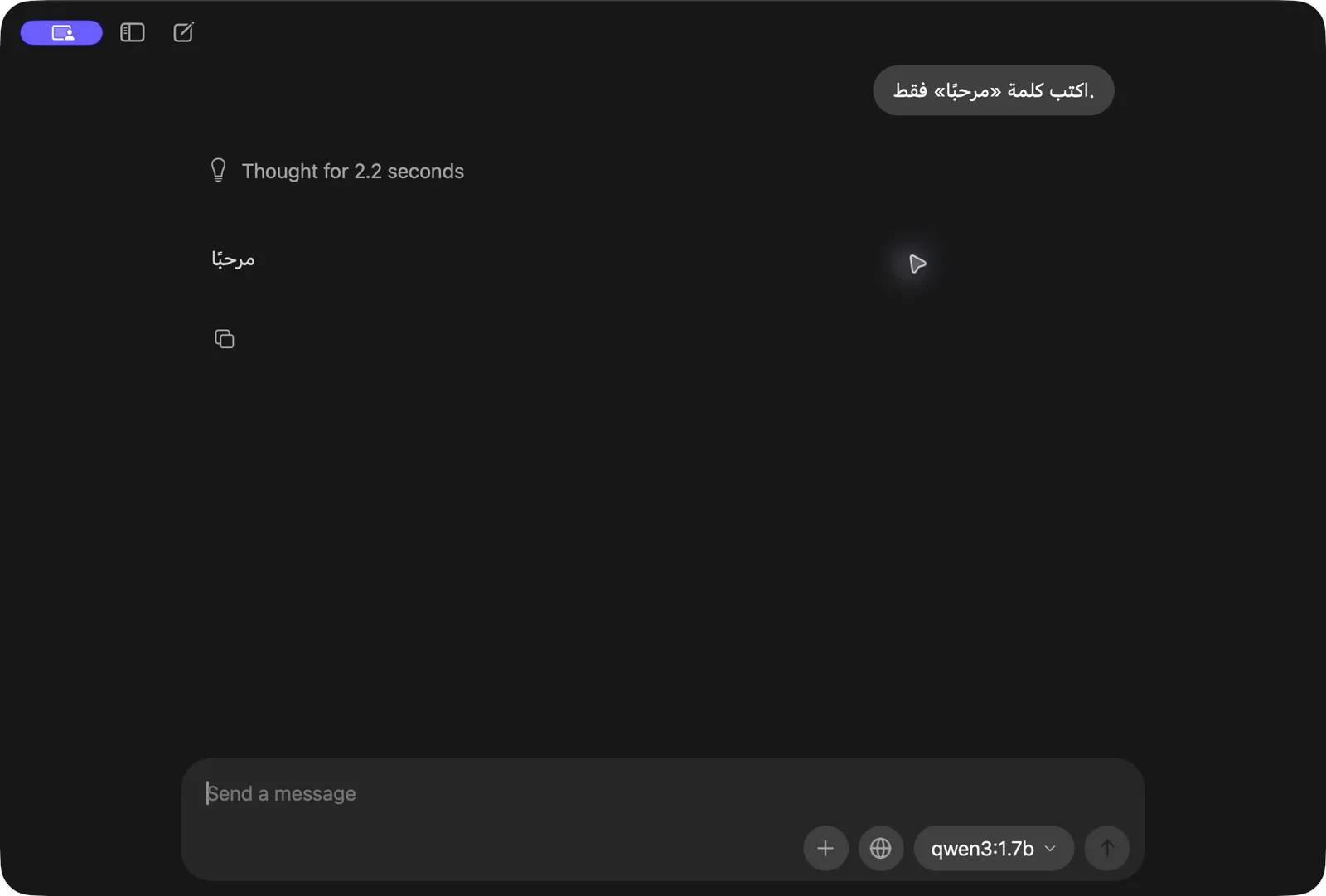
Once the test works, try a small task:
Draft a message
"Write a short invitation to a virtual meeting on Sunday at 10 am. Do not add names or details I did not mention."
Simplify a text
"Explain the following text in simple words, then summarize it in 3 points." Paste a sample or public text.
- Review the answer: a small model may repeat itself or ignore the requested length.
- If the quality is weak: make your request clearer, or try 4b if your memory allows.
- Start with text: the Qwen3 version in this guide is text only; working with images needs a model that supports them.
You do not need a real file to learn. Practice writing and summarizing with made-up data or public content first. Once you know the steps, follow your organization's policy before using any work information.
Keep it local, and the command-line method
Local use only
- Choose a local model that is downloaded to your computer. Avoid options marked cloud. You need the internet for the first download; after that you can chat locally without a connection.
- Open Settings and find "Cloud". In the version shown there is a toggle with this name. Turn it off to disable cloud models and web search, then restart the app if it asks.
- On a personal computer, disconnect from the internet and ask a question. A reply proves that this model works offline. It does not mean every feature of the app works offline.
If you cannot find the Cloud toggle, see the alternative method in the official docs.
Work data: use the tool, device and data your organization allows, even when running locally.
If the app does not offer the download
Open PowerShell from the Start menu on Windows, or Terminal from Spotlight on macOS. Paste the first command, press Enter, and wait for it to finish.
1. Download the model and wait for it to finish
ollama pull qwen3:1.7b2. Start a chat
ollama run qwen3:1.7bType your question once it starts. To leave the chat, type /bye. The run command also downloads the model if it is not there yet.
| What you want | Command |
|---|---|
| List downloaded models | ollama list |
| Stop the model and free its memory | ollama stop qwen3:1.7b |
| Delete this model to free disk space | ollama rm qwen3:1.7b |
Deleting removes that model; you will need to download it again to use it. Only run the delete command for a model you no longer need.
Quick fixes
| Problem | Try this |
|---|---|
| Download is slow or stopped | Check your connection and free space, then try again with the same model name. Do not change the size while troubleshooting. |
| Replies are slow or memory is full | Close heavy apps, start a new chat with a shorter text, or choose a smaller model. Leave Context length at its default at first. |
| Model name not found | Check the full name on the library page. Update Ollama if the model needs a newer version. |
| The ollama command is not recognized | Close Terminal or PowerShell and open it again after installing. On macOS, complete the step that adds the command if the app asks for it. |
| Could not connect to Ollama | Open the app first and try again. With a command-line install that does not start the service automatically, run ollama serve in another window. |
Official references: Download Ollama · Quickstart · Windows requirements · macOS requirements · Qwen3 1.7b model · Languages in Qwen3 · Privacy and disabling cloud · CLI reference · Context length · Troubleshooting
The memory suggestions are starting guidance, not requirements from the company. The website screenshots and app screenshots were taken for this guide; the Windows install path is documented officially, and the app screenshots are from macOS.
Before you say "done"
Sources: official Ollama documentation at docs.ollama.com, the download page and model library at ollama.com, and the Qwen3 blog. Checked November 2026.
Want your team to use this at work?
I'm Abdulaziz Alshamsi, a certified AI trainer and consultant in Abu Dhabi. I train government and company teams to use AI in their daily work. Message me to discuss a session for your team.