


Claude in Chrome: an AI assistant inside your browser
Install the extension in two minutes, set the permission mode that keeps you in control, run your first task and teach Claude a workflow it can repeat for you. For anyone on a paid Claude plan.
What sets this extension apart from a normal AI chat is that it works inside your own browser session: it reads the page in front of you, clicks, types and moves between tabs using the accounts you are already signed into. No API setup, no copy and paste. That same power is the risk, so the permission mode is the first thing to set, before anything else.
What Claude in Chrome is
An official extension from Anthropic that puts Claude in a side panel next to the page. It works in two very different ways: an assistant that reads and summarizes what you see, and an agent that carries out tasks on the page itself.
Reading assistant
Summarizes articles and reports, pulls out figures and arguments, and answers questions about the open page without you leaving the tab.
Acting agent
Clicks, types, fills in forms and moves between sites to finish a multi-step task for you, in a window you can watch.
Works in your accounts
Works inside Gmail, Google Docs, Notion or any web app you are signed into, with no technical setup.
Scheduled tasks
Save a task as a shortcut and schedule it to run daily, weekly, monthly or annually, as long as Chrome is open.
Status: Claude in Chrome has been generally available on every paid plan since 26 August 2026. It also works from Claude Cowork and Claude Code.
What you need before you start
- A paid plan: Pro, Max, Ultra, Team or Enterprise. The Free plan does not include it.
- A claude.ai account: access through Amazon Bedrock, Google Cloud or Microsoft Foundry alone is not enough.
- Google Chrome: the side panel runs in Google Chrome only, not in other Chromium browsers.
- A computer: it does not run on phones or tablets.
Install it in five steps
- Open the extension page in the Chrome Web Store from the link below, click Add to Chrome, then accept the permissions it asks for.
- Sign in with your paid Claude account.
- Pin the icon: click the puzzle piece in the toolbar, then the pin next to Claude, so it is one click away.
- Choose the permission mode under the message box. Start with Manually approve (section 5).
- Test it on a long article: ask it to summarize the page. If a summary appears, you are set up.
# Official Chrome Web Store link
https://chromewebstore.google.com/detail/claude/fcoeoabgfenejglbffodgkkbkcdhcgfn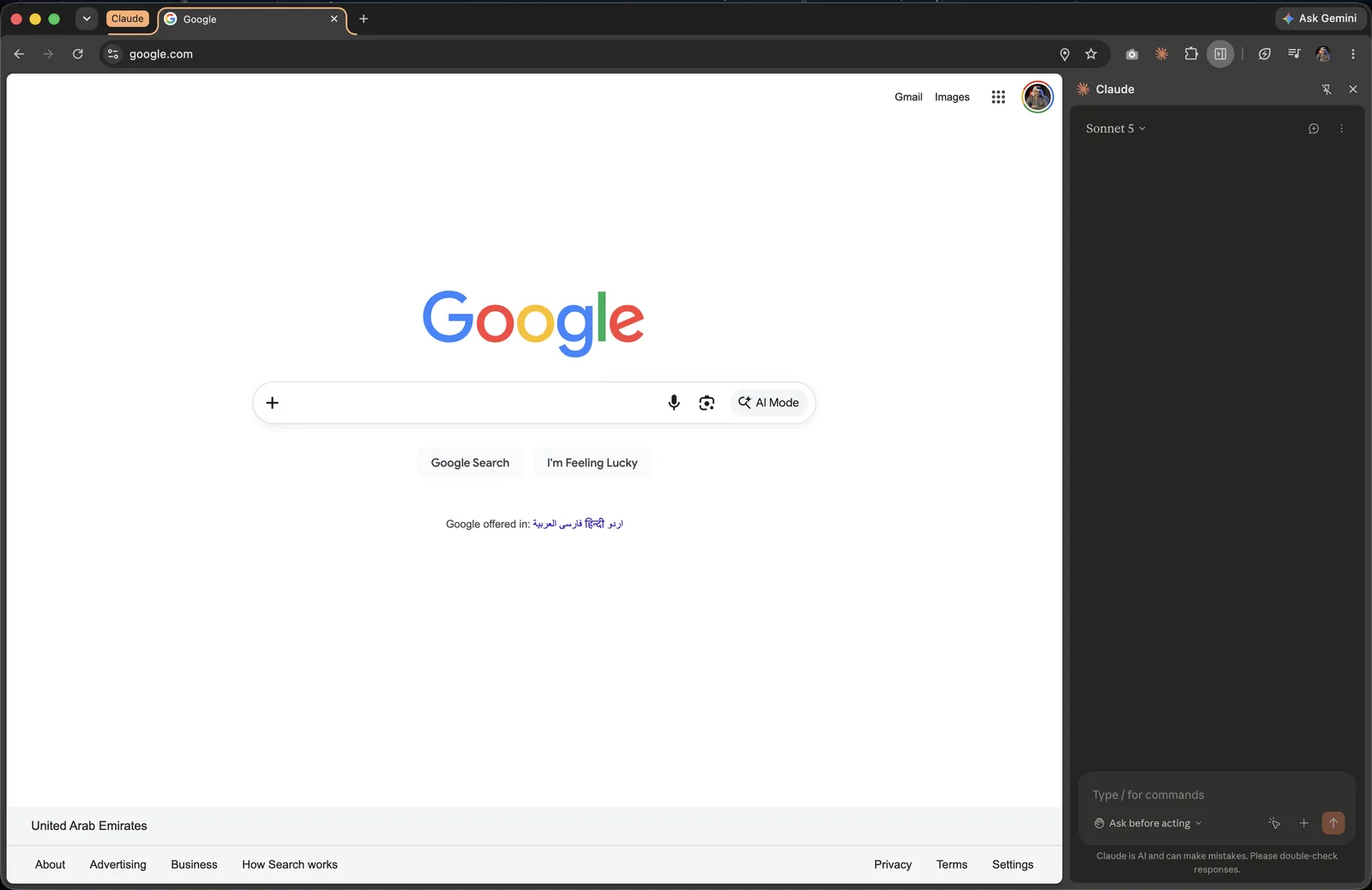
Pick the right model
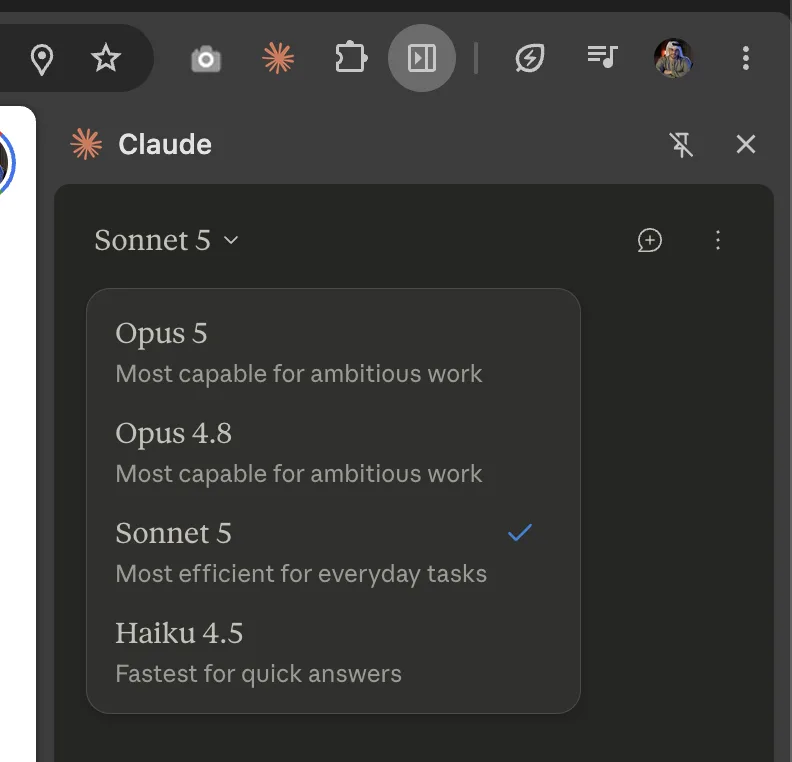
The model menu at the top of the panel sets which Claude does the work. The extension offers all public models. The rule of thumb: the more steps a task has, the stronger the model it needs; the quicker the question, the faster the model should be. In November 2026 the current models are:
Fastest: short questions, light summaries, pulling one fact from a page.
Everyday choice: the best mix of speed and intelligence for summaries, research and simple forms.
Long tasks: multi-step work across several sites and analysis where mistakes are costly.
Hardest work: demanding reasoning and long-running tasks where Opus still falls short.
Permission modes: the most important setting
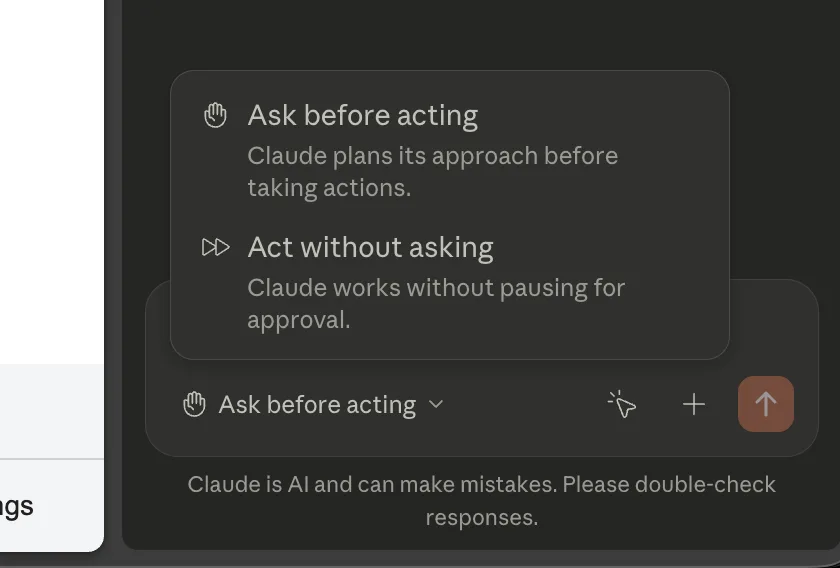
This setting decides how much freedom the agent has. Open the menu under the message box and you will see three modes:
Recommended to start: Claude pauses and asks you to Allow or Deny each action. Use it on any site you have not tested and on anything tied to your work.
The default: Claude keeps working while a safety check reviews each action, blocks unsafe ones and asks you when needed.
Trusted tasks only: Claude does not pause and nothing checks its actions. Use it only when you trust every site, file and tool in the task.
On top of the mode, there are permissions per site. When Claude reaches a site that needs approval, you choose Allow this action, Always allow actions on this site, or Decline. To review or revoke them: click the Claude icon, then the three dots at the top right of the panel, then the extension settings, then Permissions.
Built-in limits: Claude always asks before changing permission settings, granting authorizations, entering sensitive information or deleting permanently. It will not make purchases, create accounts, trade stocks or bypass CAPTCHAs. Adult and pirated content sites are blocked, and it asks before opening financial sites.
Teach Claude your workflow, then repeat it
The most useful everyday feature. Instead of describing a task in writing, you record yourself doing it once, the way you would show a new colleague, and Claude repeats it for you later.
- Start: click the record icon in the message box, then Start recording.
- Do the task with your usual clicks. You can talk through what you are doing; it listens while recording.
- Review the numbered list of steps in the panel, remove any extra step, then click Done.
- Save it as a shortcut. Type / in the message box to run it again. To run it on a schedule, click the clock icon at the top right of the panel.
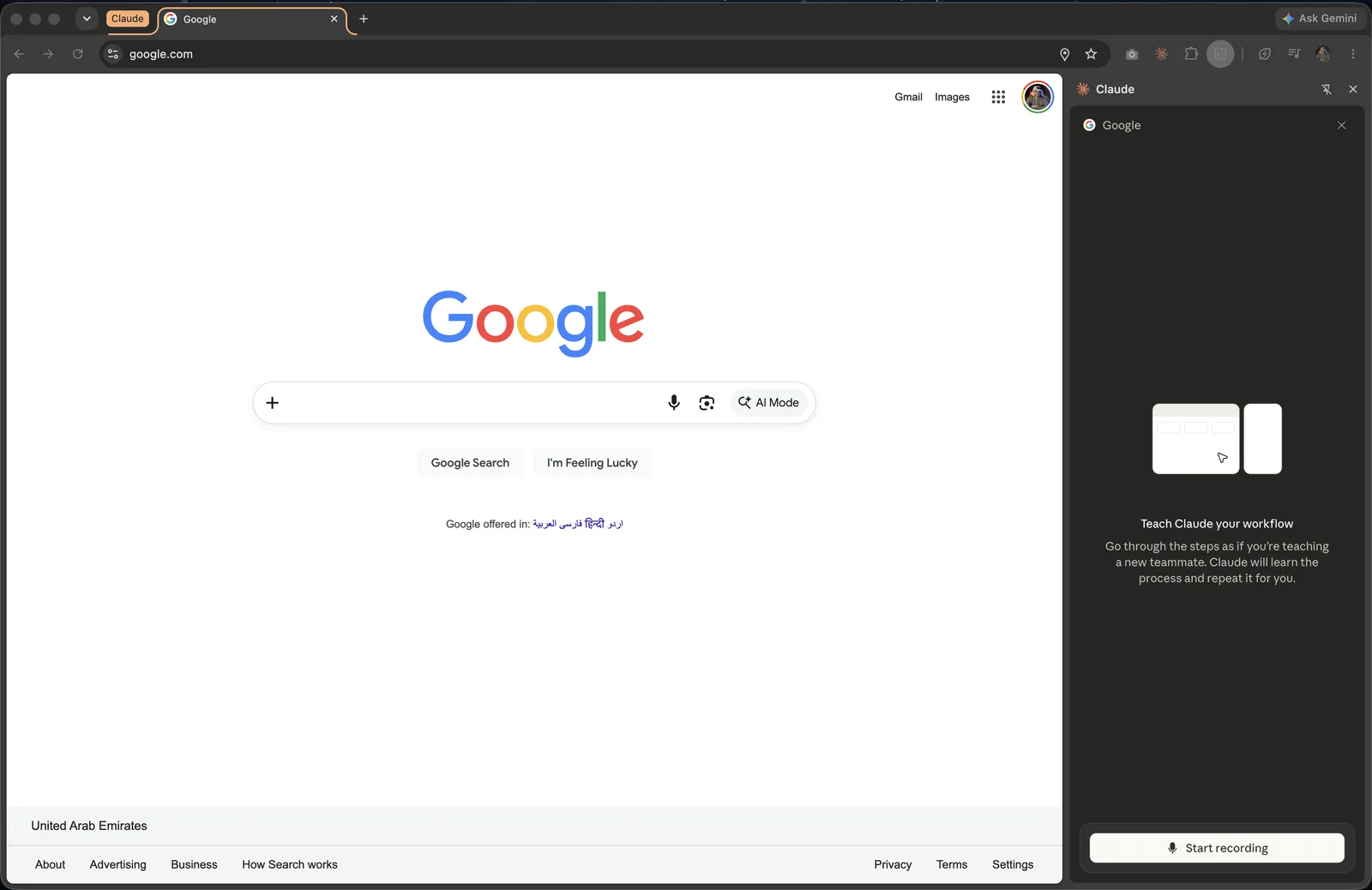
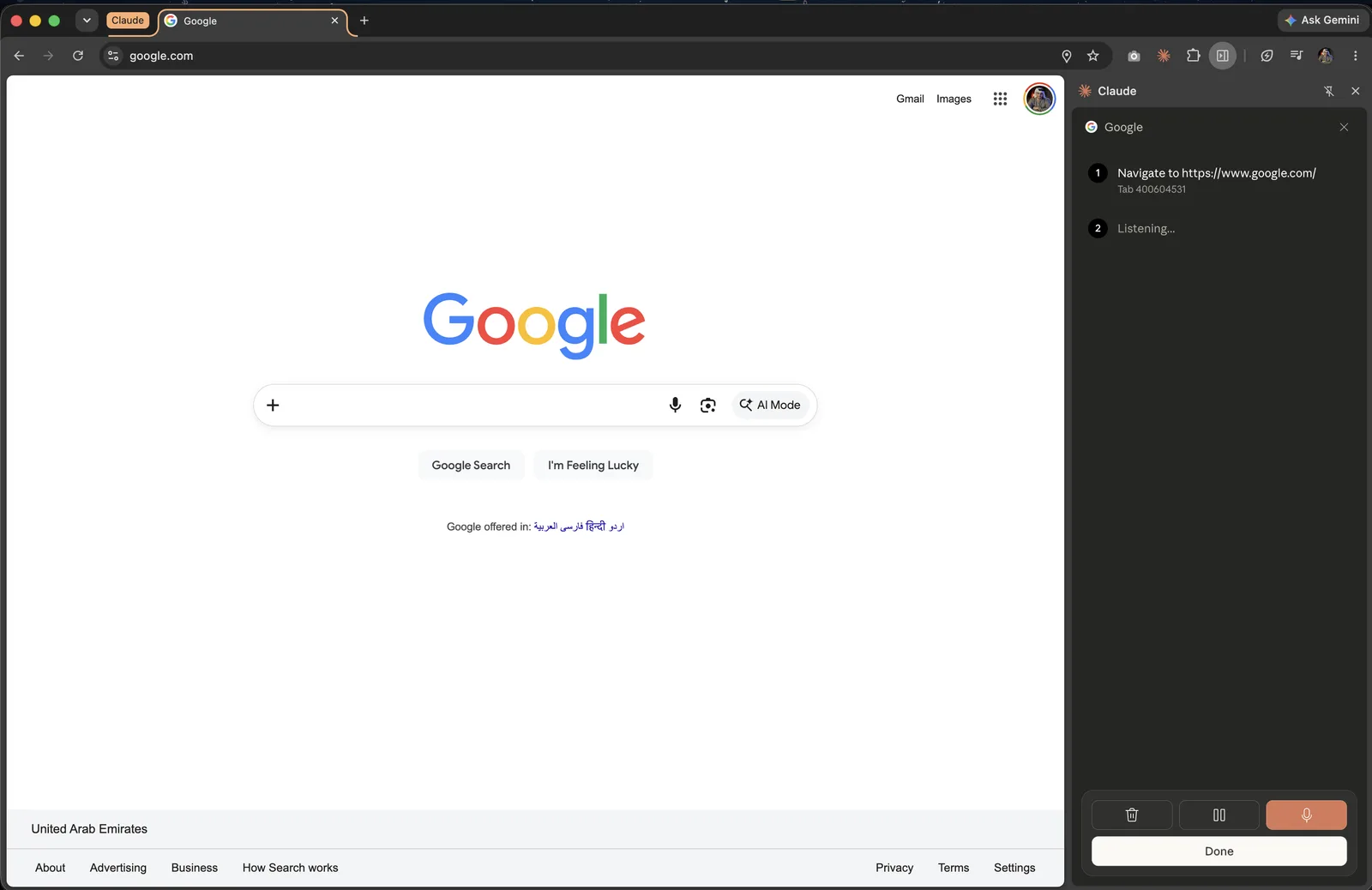
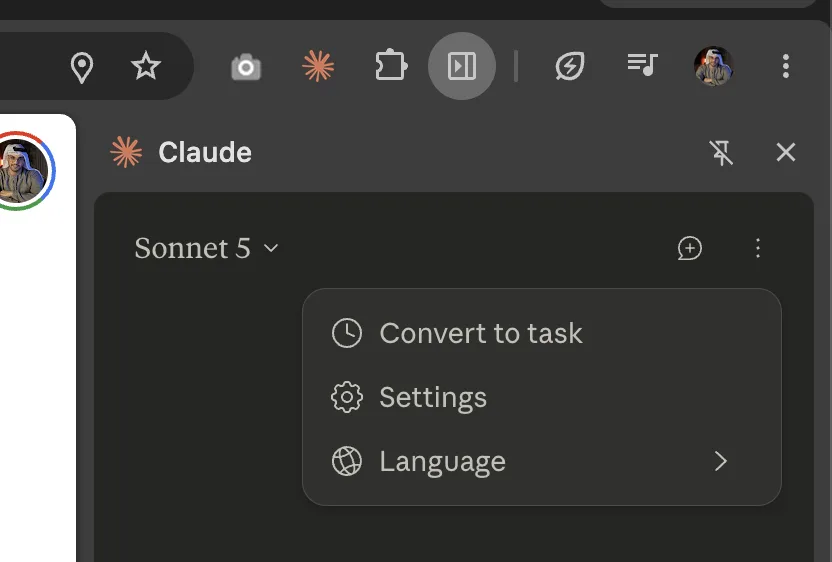
Not seeing the record icon? Recording works in the classic side panel only, not when the panel runs as a Cowork session. Scheduled tasks run only while Chrome is open.
Use cases worth trying now
Ordered from least to most risk: start with tasks that only read, then move to tasks that write.
Research and summaries
Summarize a report or paper, pull out the arguments and numbers, and separate what is new from what you already know.
Dashboard reports
Collect metrics from your analytics dashboards into a weekly summary. A good candidate for a scheduled task.
Inbox cleanup
Find promotions and newsletters and archive them in bulk, or label messages that match a rule you set.
Meeting prep
Read tomorrow's calendar, look up each external attendee's company and add a short note on what they do.
Repetitive data entry
Move rows from a spreadsheet into a web form one record at a time. Run it in small batches and check the result.
Competitor tracking
Visit competitor sites and gather prices and features into a comparison table.
For developers: connect it to Claude Code
Build in the terminal and test in the browser without switching context. Claude reads console errors and the DOM directly, then fixes the code that caused the problem.
claude --chrome          # start a session connected to the browser
/chrome                  # status, reconnect, permissions, enable by default

# example request
Open localhost:3000, submit the form with invalid data,
then check the console for errors.- Sign in with
/login: with an API key or a token fromclaude setup-token, Chrome integration stays off. - Extension version: 1.0.36 or later.
- Browsers: from Claude Code it also connects in Microsoft Edge and other Chromium browsers such as Brave, Arc, Vivaldi and Opera. It is not supported inside WSL on Windows.
- Extras: design checks against a mockup, uploading local files (up to 10 MB per upload) and recording a session as a GIF.
- Context cost: Enabled by default loads the browser tools into every session and uses more context. Turn it off and use
--chromeonly when you need it.
Safety and real limits
The main risk for any browser agent is prompt injection: hidden instructions planted in a web page that try to redirect what Claude does. Anthropic screens every page and every action with safety classifiers and reports an attack success rate under 0.08% in its internal testing, while stating the risk is still not zero.
Limits to know before you rely on it for real work:
- Logins and CAPTCHAs: it stops and hands control back to you to complete them.
- Browser pop-up dialogs (alert, confirm) block it. Close them yourself, then tell Claude to continue.
- Check its work: on long jobs, run small batches and review each one before the next.
- Screenshots and GIFs capture everything visible, including account details. Do not open the panel while sensitive documents are on screen, and review recordings before sharing them.
Golden rule: keep it away from bank and investment accounts, legal documents and contracts, and medical records. Anthropic suggests a separate Chrome profile with no sensitive accounts signed in. Start with trusted sites and grant access one site at a time.
Quick checklist
Sources: Anthropic, "Claude in Chrome is generally available" (claude.com) · Getting started with Claude in Chrome, Claude in Chrome permissions guide and Using Claude in Chrome safely (support.claude.com) · Use Claude Code with Chrome (code.claude.com/docs/en/chrome) · Models overview (platform.claude.com). Screenshots: the author's own, mid-2026. Checked November 2026.
Want your team to use this at work?
I'm Abdulaziz Alshamsi, a certified AI trainer and consultant in Abu Dhabi. I train government and company teams to use AI in their daily work. Message me to discuss a session for your team.