


Build Your Deck in ChatGPT Slides
From a blank page to an editable presentation you can change, share, present and export to PowerPoint, PDF or Google Slides. For Pro, Business and Enterprise users, about 30 minutes for a first deck.
Slides is a page type inside Space, not just a reply in the chat. You get a real deck: click any element to change it, or ask ChatGPT to change it for you, then share it, present it or export it.
The short path:
1. Open Space, then Slides, and click New slides (section 1).
2. Write one clear request with audience, goal and slide count, and attach your files (section 3).
3. Fix single elements with Request edits and whole-deck changes in the Work with ChatGPT box (section 4).
4. Share, present, or export, then check every number (section 5).
Have these ready before you start
About the screenshots: they were taken in the macOS app on a Pro account in November 2026. Slides started rolling out on October 16, 2026 and is still reaching accounts, so your buttons may look slightly different, or the feature may not have arrived yet.
Find Slides inside Space
Space is where ChatGPT keeps Pages, Slides, Sites, images and Google Drive files together. You open it from the sidebar.
- Open Space from the left sidebar.
- Choose Slides from the list of content types.
- Click the black New slides button at the top right. You can also ask ChatGPT in a conversation to create a presentation from your files or an outline.
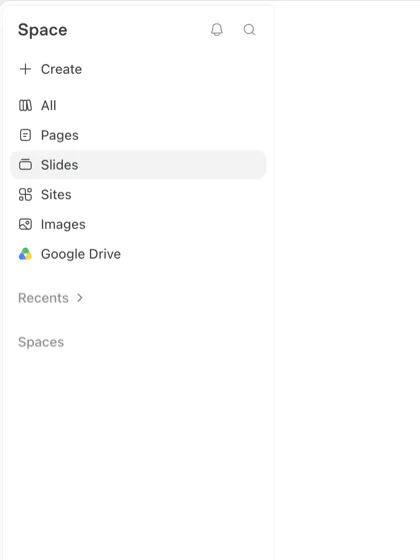

No Slides in your sidebar? Check that your plan is Pro, Business or Enterprise. On a Business or Enterprise workspace, an admin may need to enable Space. If all of that is in place, the rollout has not reached your account yet.
Learn the editor in one minute
Slide thumbnails sit on the left, the current slide in the middle, and the editing and request tools around it.
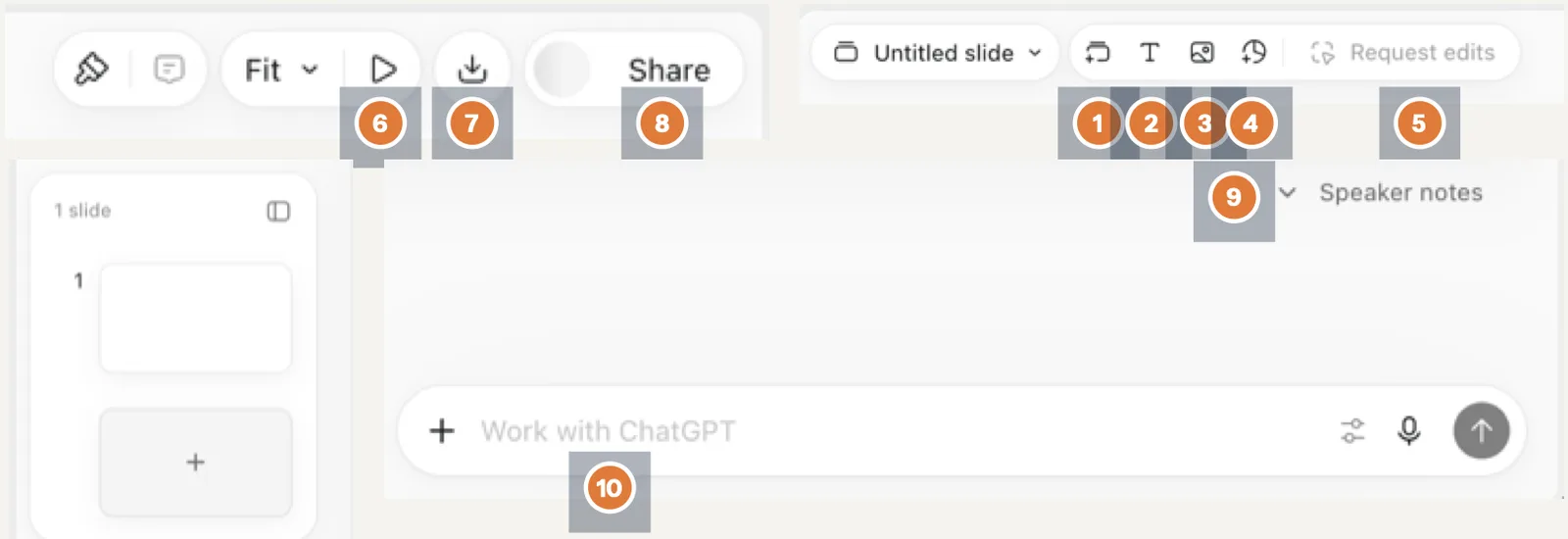
Adds a slide to the deck.
Adds a text box you can type in and format.
Adds an uploaded image or generates one.
Shows earlier versions of the deck.
Select a slide or element and ask for a specific change.
Starts presenting.
Exports the deck.
Adds people and sets link access.
Notes for each slide, shown while you present.
The ChatGPT box you already know, working on the open deck. Use it for changes across one or many slides.
Write one request that builds a good deck
A vague request gets you a few thin slides. A clear one states these six things:
- Audience: who will watch it.
- Goal: what they should understand or decide.
- Length: number of slides, with one idea per slide.
- Sources: attach the files and say "use only facts from the attachment".
- Look: attach an example deck so ChatGPT matches its style and layout.
- Output: presenting inside ChatGPT, or exporting to PPTX or PDF. Ask for the outline first.
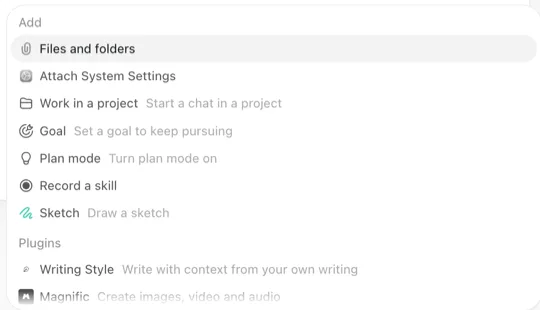
Attach files with the + button in the request box, then Files and folders.
Starter request
Create an 8-slide presentation for [AUDIENCE] that explains [TOPIC], based on the attached file. Structure: introduction, 3 main points, an example, a summary, and a next step. One idea per slide, 5 lines at most per slide. Use Western digits 0-9. Show me the slide outline first, and build the deck only after I approve it.Add this to stop invented facts
Use only the data, numbers, names and dates found in my messages or attachments. If a required piece of information is missing, write [MISSING DATA: describe what is needed]. Do not invent customer testimonials, logos or case studies.Add this to match your brand
Follow the colors, fonts, logo position and slide structure of the attached example deck. Change the content only.Send numbers as text, not as a screenshot. Put figures in a table or plain text. Numbers read from a chart image are easy to get wrong, so ask ChatGPT to check every figure against your file before you approve the deck.
Three ways to edit the deck
1 · Click and edit
Click any text, image, shape, table or chart and change it directly on the slide.
2 · Request edits for one element
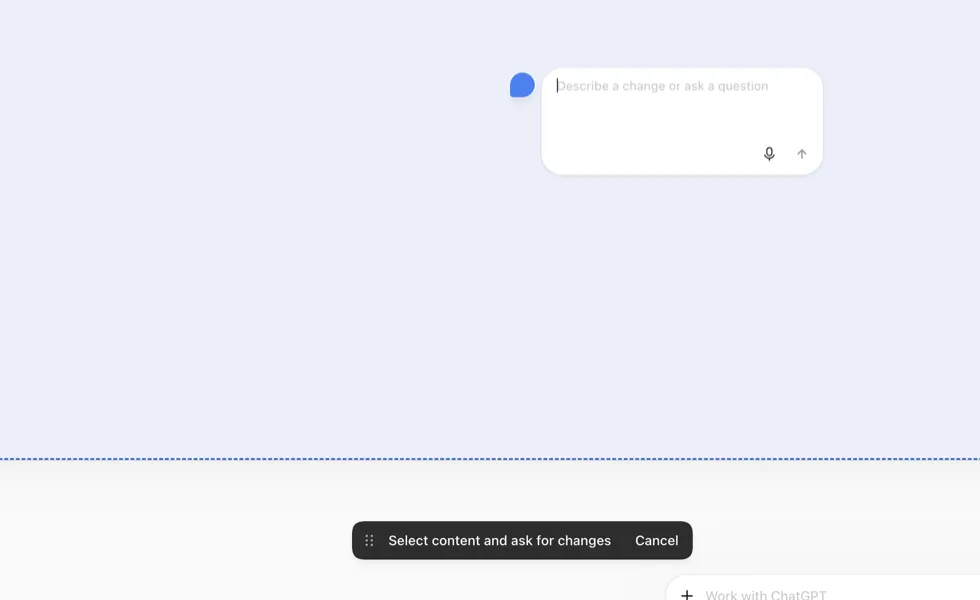
- Click Request edits in the toolbar.
- Select the slide or element. A dashed blue frame appears around it.
- Type the change in the Describe a change or ask a question box.
3 · The Work with ChatGPT box for bigger changes
When a change covers several slides, use Work with ChatGPT. Say which slides it applies to and what must stay the same.
On slides 2 to 6, make the headings 32 pt. Keep the text and images as they are.Collaborators can also leave comments and mention ChatGPT in a comment to ask for an update.
Optional: model and effort
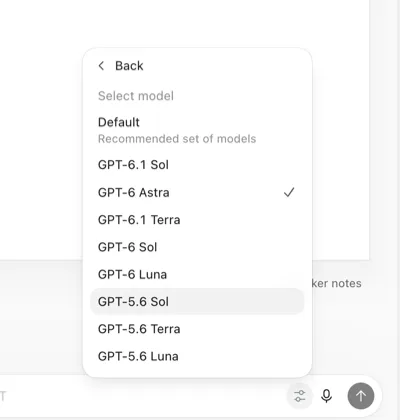
The settings icon in the request box lets you pick the model and how much reasoning effort ChatGPT uses. Higher effort is slower. The default is fine for a first draft; raise it for a complex deck or one built from long documents. Model names in this list change often.
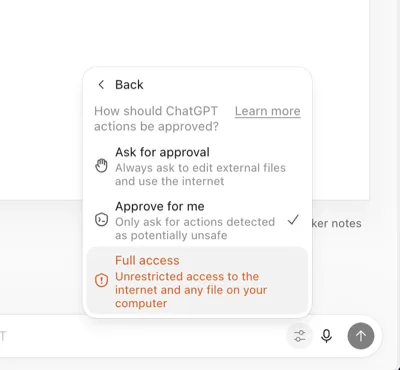
The same settings menu also controls how ChatGPT asks before acting. Ask for approval or Approve for me are the safe choices. Full access gives unrestricted access to the internet and any file on your computer, so leave it off unless you have a clear reason.
Share, present and export
Share
- Click Share at the top right.
- Add people and give each one View or Edit. Slides has no comment-only role.
- Set Link access (for example Only those invited), then click Copy link. On Business and Enterprise workspaces with teams enabled, you can share with a whole team.
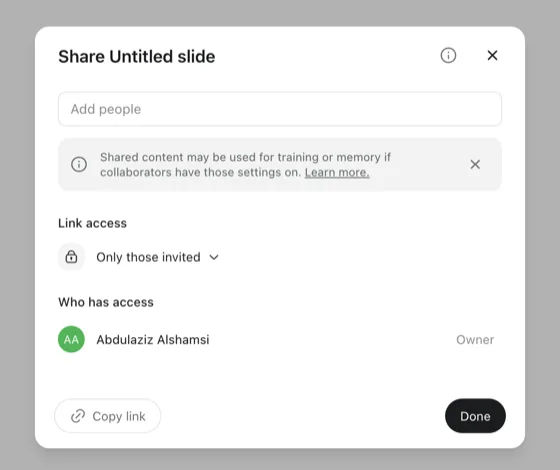
Check before you share work data. The Share window warns that shared content may be used for training or memory if a collaborator has those settings on. Follow your employer's policy before uploading or sharing work files.
Present
Click Play to start, and use Fit to adjust the zoom. You can present with your speaker notes. Do a full run-through before the real talk; if anything looks off, export to PPTX and present from PowerPoint.
Export
In the browser, click Download and choose PowerPoint (.pptx), PDF or Google Slides. In the desktop app you can also open the deck in PowerPoint or Keynote if they are installed. Fonts and charts can shift after export, so open the file and check it.
After exporting, check
Test Arabic before you rely on it
OpenAI has not published anything specific about Arabic or right-to-left text in Slides. Arabic deck titles did show correctly in the Slides library in our test, but run your own 10-minute check before an Arabic deck goes in front of an audience.
The 10-minute test
- Create 5 Arabic slides. Add one line that mixes Arabic and English, a bullet list, and a percentage written with Western digits.
- Check paragraph direction and alignment in the editor.
- Click Play and check word order and letter joining.
- Export to PPTX and open it in PowerPoint.
- Export to PDF and check letter joining and fonts.
If the Arabic layout breaks
- Export to PPTX instead of relying on the PDF.
- In PowerPoint, set the paragraph direction to right-to-left.
- Apply an Arabic font such as Cairo, Tajawal or Noto Sans Arabic.
- Put English terms and percentages on their own, then check the order by eye.
Quick fixes
State the slide count and ask for 3 to 5 lines per slide.
Use Work with ChatGPT and name the slide numbers or the area to change.
Send the data as text or a table and ask ChatGPT to match it against the file again.
Fix it in PowerPoint. Custom fonts are not guaranteed to survive export.
If the Windows desktop app creates a PowerPoint file instead of a shared deck, switch to cloud mode or use ChatGPT in the browser.
There is no comment-only role. Send them a PDF export instead of edit access.
Before you say "done"
Sources: ChatGPT Slides and ChatGPT Space feature pages (chatgpt.com), ChatGPT Learn: Get started with Space and Collaborate in Space (learn.chatgpt.com), OpenAI Help: Creating and collaborating on slides in ChatGPT, TechCrunch (September 29, 2026), Crypto Briefing (October 2026). Screenshots: macOS app, Pro account, November 2026. Checked November 2026.
Want your team to use this at work?
I'm Abdulaziz Alshamsi, a certified AI trainer and consultant in Abu Dhabi. I train government and company teams to use AI in their daily work. Message me to discuss a session for your team.