


Connect Canva to Claude
Link your Canva account to Claude, then ask for a presentation in one chat message and open the result in Canva to edit. For beginners on Claude Desktop or claude.ai, about 10 minutes.
Claude connected to your Canva account through the Canva connector. You type a request in the chat, Claude drafts the slide outline, Canva generates design options inside the conversation, and you open the one you like in Canva to keep editing.
Before you start
Add the Canva connector
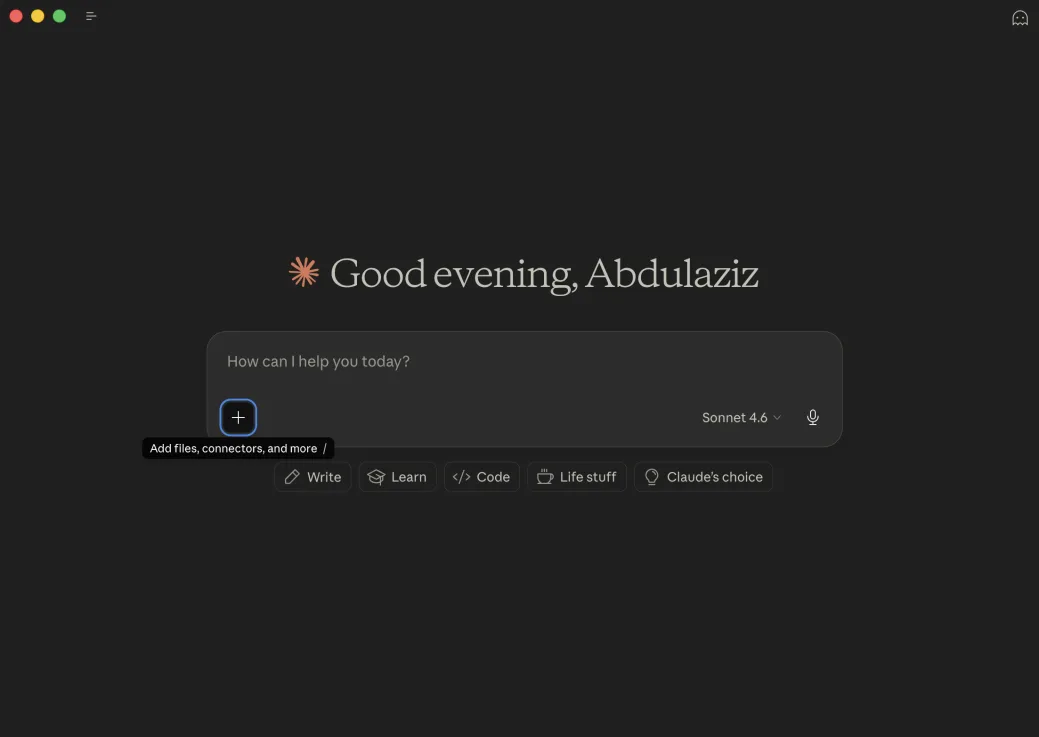
- Step 1. Open Claude. Under the chat box, click the + button (its tooltip reads "Add files, connectors, and more").
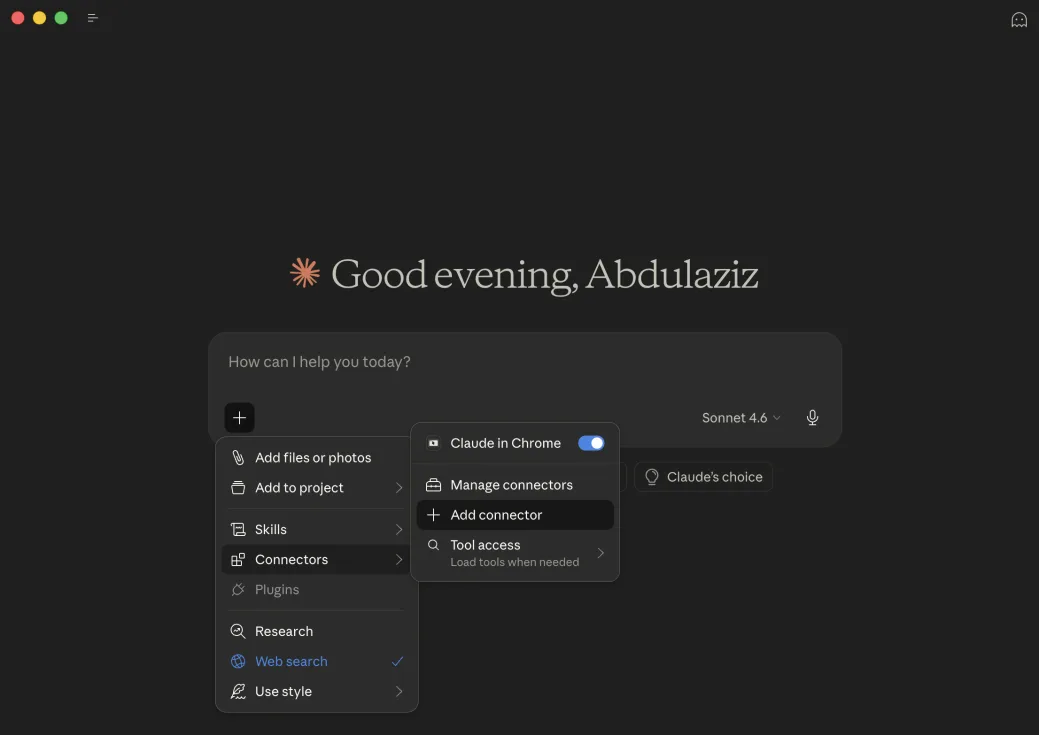
- Step 2. Hover over Connectors. A submenu opens next to it. Click Add connector.
- Step 3. The Directory window opens. Make sure Connectors is selected in the left sidebar. Find Canva and click the + next to it.
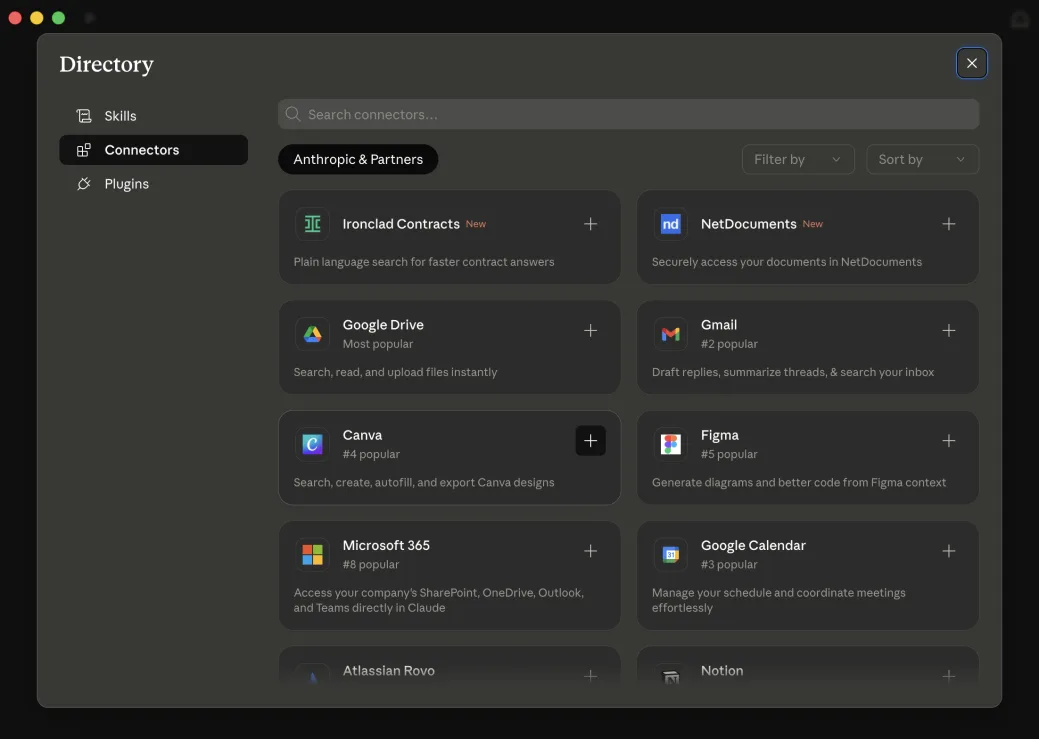
Cannot find Canva or Add connector? Type "Canva" in the Search connectors box at the top of the Directory. If your menu shows only Manage connectors, click it and then the + next to Connectors. You can also get there from Customize > Connectors. The order of connectors in the Directory changes over time.
Give Canva permission
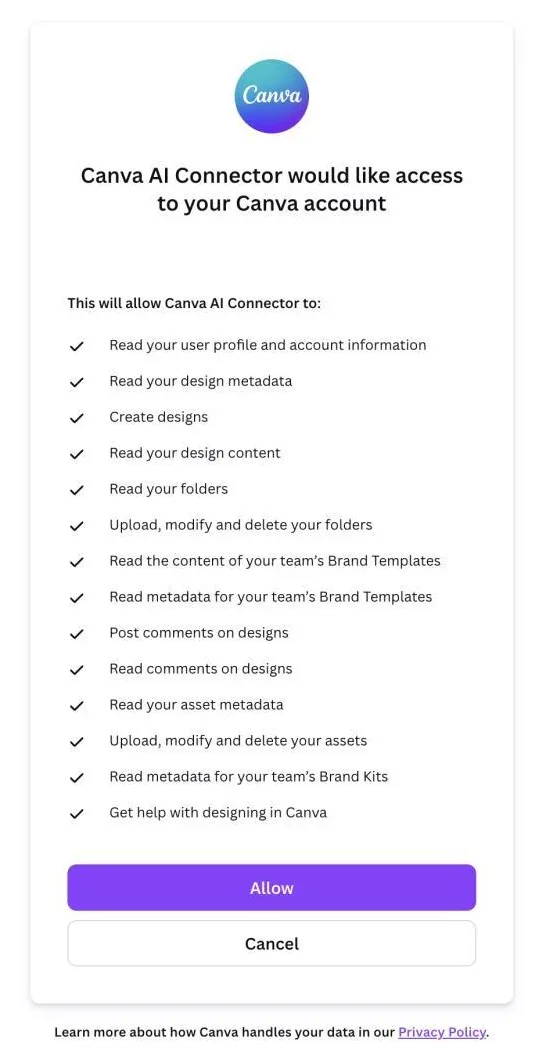
- Step 4. Claude sends you to Canva's page "Canva AI Connector would like access to your Canva account". Check that the account shown is the one you want. If not, click Switch accounts.
- Step 5. Read the list of permissions. It includes reading your profile and designs, creating designs, managing folders and assets, reading your team's Brand Templates and Brand Kits, and reading and posting comments. Click Allow. Click Cancel if you want to stop and come back later.
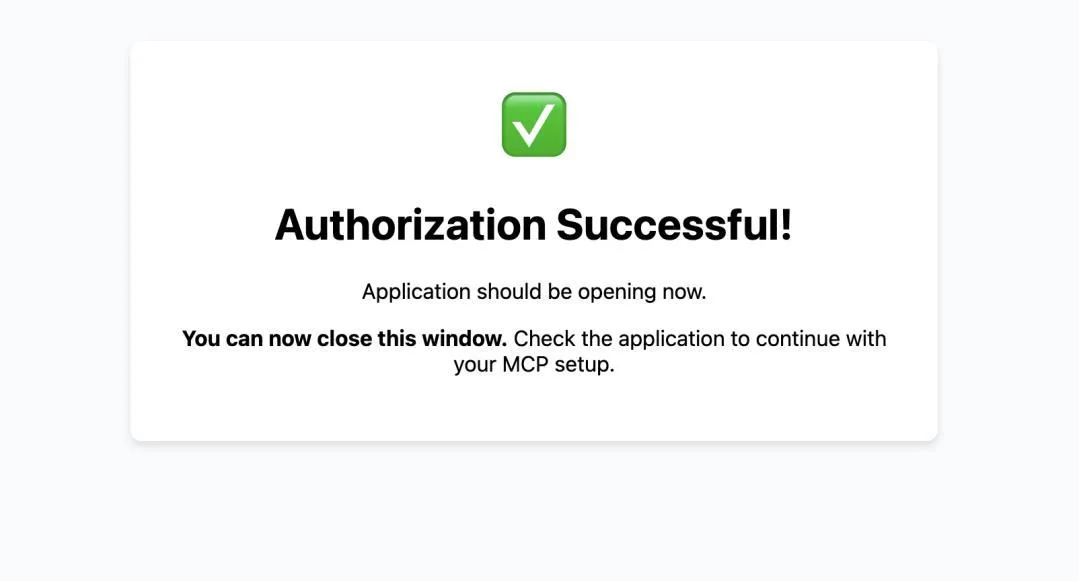
- Step 6. You will see Authorization Successful! with a green check. Close this browser window and go back to Claude.
Using a work account? On Canva Teams, Business, Nonprofit, Education or Enterprise, your Canva admin must allow third-party integrations (Admin Dashboard > Controls and Permissions > Third-party integrations). On a Claude Team or Enterprise plan, an Owner must enable the Canva connector for the organization first.
Check that Canva is on
- Step 7. In Claude, click + again and hover over Connectors. Canva now appears with a blue toggle. Blue means it is on for this chat.
- Step 8. You will also see Add from Canva. Use it to attach one of your existing Canva designs to the conversation.
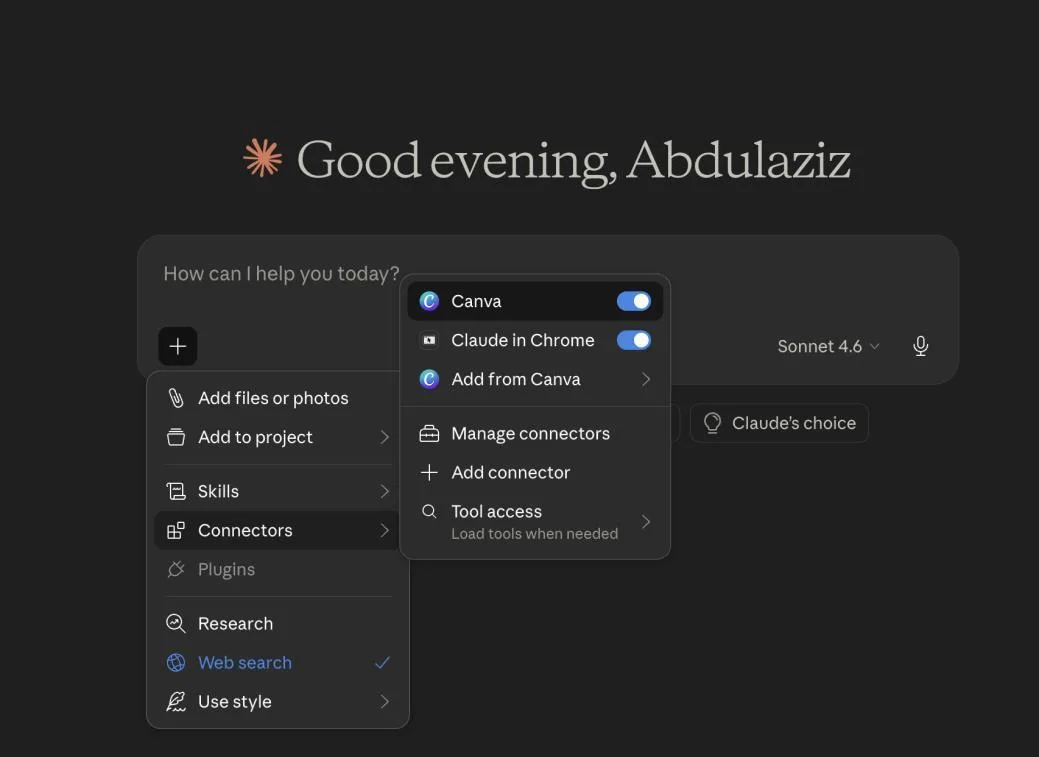
The toggle works per conversation. If Claude does not use Canva in a chat, open this menu and check the toggle first.
Make your first presentation
- Step 9. Start a new chat and type a request that names Canva, for example:
Example request
Use Canva to create a presentation on how AI is changing the job market.- Step 10. Claude calls the Canva tool and shows an outline: the title, style options (for example Professional, Balanced, Minimalist) and the first slides with a short description of each.

- Step 11. Scroll to the bottom of the outline. Read every slide before you continue. To change the order, wording or number of slides, click Customize or reply in the chat with what to change. When the outline is right, click Generate design.

- Step 12. Canva shows several design options as cards you can scroll inside the chat. Click the one you like. It opens in Canva, where you edit it like any other design, and it is saved in your Canva account.

Check the facts on your slides. Claude writes the numbers and claims in the outline itself, and they can be wrong or out of date. Verify every figure before you present. Generating designs also uses your monthly Canva AI allowance, and Canva warns you in the chat when you are close to the limit.
Turn it off, disconnect or fix it
- Off for one chat: click +, hover over Connectors and switch the Canva toggle off.
- Disconnect completely: click + > Connectors > Manage connectors (or go to Customize > Connectors), select Canva and disconnect it.
- Connected but Claude does not use Canva: start a new chat and make sure the Canva toggle is on.
- It worked before and stopped: disconnect Canva, then add it again from step 1.
Next things to try
- "Design an A4 flyer for our Saturday market."
- "Find all my presentations that mention our marketing plan."
- "Export my presentation as a PDF."
Sources: Claude Help Center, "Use connectors to extend Claude's capabilities" and "Use interactive connectors in Claude"; Canva Help Center, "Connect your Canva account to Claude", "Connect Canva to an AI assistant" and "Use Canva in your AI assistant"; screenshots from the author's own setup. Checked November 2026.
Want your team to use this at work?
I'm Abdulaziz Alshamsi, a certified AI trainer and consultant in Abu Dhabi. I train government and company teams to use AI in their daily work. Message me to discuss a session for your team.