


Make a Video Sound Effect from a Description
The same shot feels different once it has the right sound. Describe the effect in ElevenLabs Sound Effects, listen to the options, and download the one that fits your movement. 6 steps, with ready descriptions to copy.
A sound effect file (MP3 or WAV) made from your own description, cut to the length of the movement in your clip and placed in sync in your edit. The worked example is a car boot closing, and the same method works for any movement in your video.
Before you start
Open ElevenLabs and choose Sound Effects
- Sign in at elevenlabs.io and open the Home page.
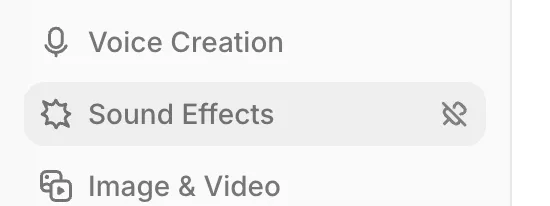
- In the left sidebar, click Sound Effects. In the screenshot it sits under Pinned.
- If you do not see it, open More tools at the bottom of the sidebar, or go straight to elevenlabs.io/app/sound-effects.
Find the description box
The Sound Effects page has a ready library at the top and a box for describing the sound you want at the bottom.
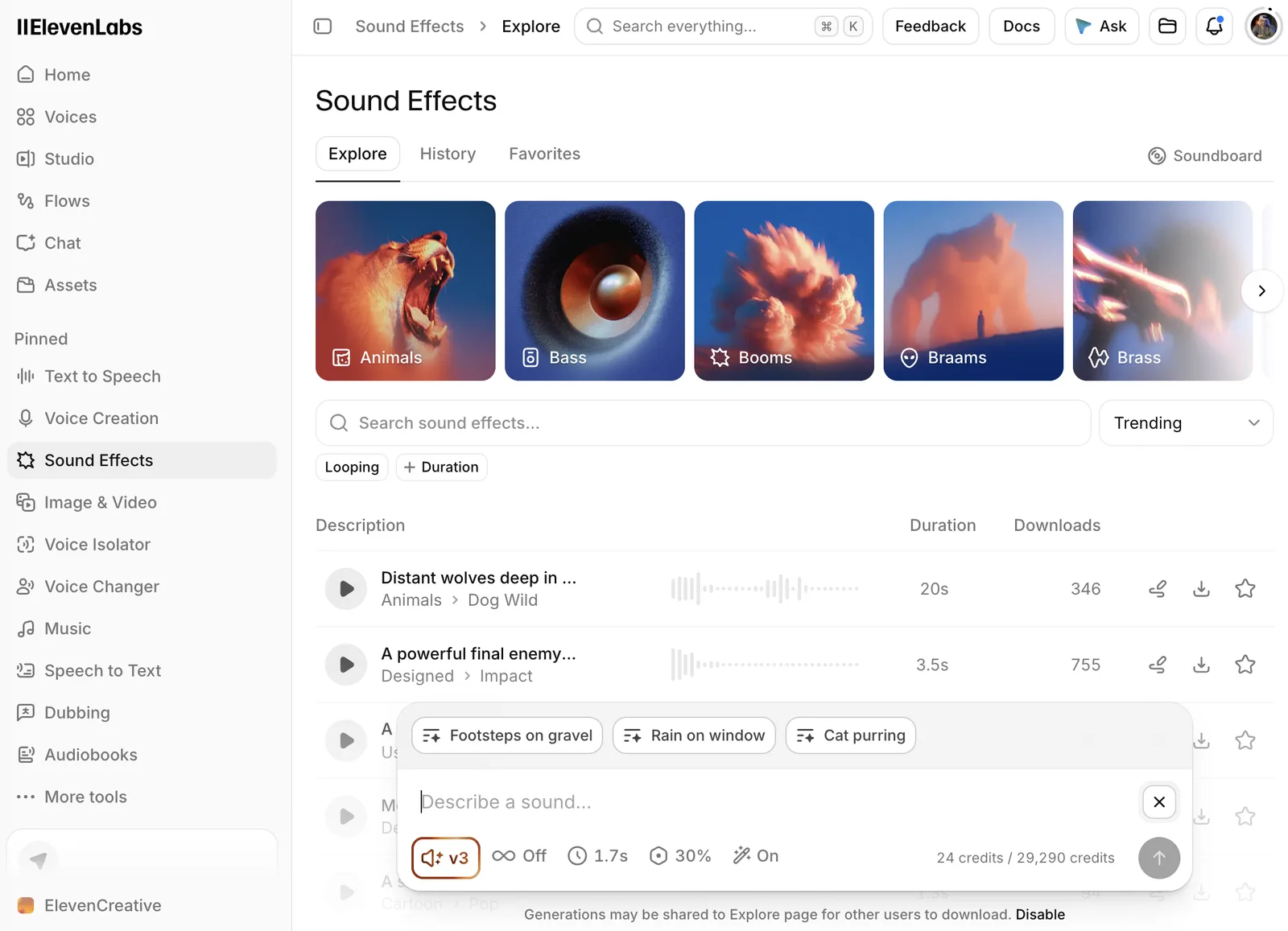
- Explore is a library of ready sounds you can play and download.
- If your movement is common, try Search sound effects... first before generating a new one.
- To generate, click inside the Describe a sound... box at the bottom of the page.
Under the box the page says Generations may be shared to Explore page for other users to download. If you do not want other users to download your sounds, click Disable next to that line.
Write the sound description
Describe the movement you see in the shot, not the general mood. The more precise the description, the closer the result.
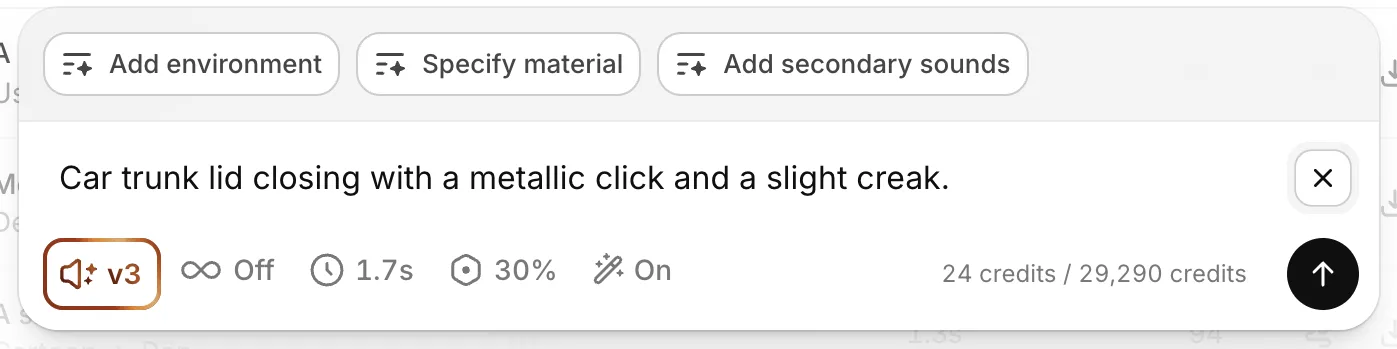
What happens: a boot lid closing, a door opening, footsteps.
Metal, wood, glass, fabric. Button: Specify material.
Outdoors, a closed car park, a small room. Button: Add environment.
A light creak, an echo, wind. Button: Add secondary sounds.
The description used in the example: car boot closing
Car trunk lid closing with a metallic click and a slight creak.- Keep it under 450 characters, the limit for one description.
- For two sounds in a row, write them in order: "Footsteps on gravel, then a metallic door opens."
- Asking for an exact count ("hit 4 times") is not always followed. Generate and pick instead.
- The example is in English. You can try your own language first, and if the result drifts from what you want, rewrite it in English.
Adjust the settings
The settings bar sits under the description. Most of the time you only need to change the duration.
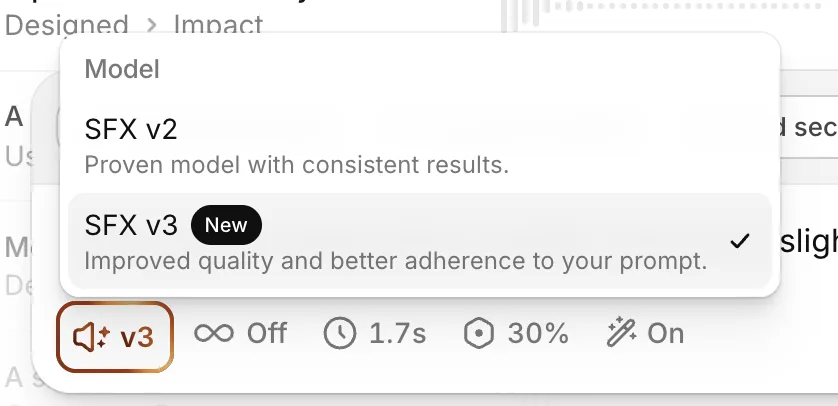
Model menu: SFX v3 is the newest.
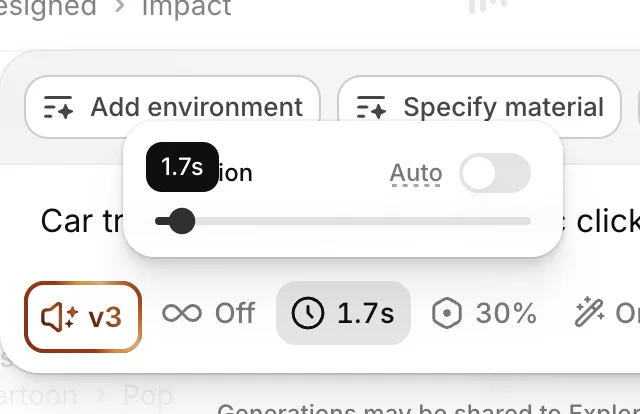
Set the duration on the slider, or switch on Auto.
The default since November 2026. It follows descriptions with several details more closely. SFX v2 is still listed but is being retired on 1 March 2027.
Turn it on for a background sound that repeats seamlessly, such as rain or room tone. Leave it Off for a short movement.
Match the length of the movement in your clip, or use Auto to let it follow the description. Maximum 30 seconds.
Default 30%. Higher follows your description more literally, lower gives the tool more freedom and more variety.
In the example the duration is 1.7 seconds, the length of the boot closing. Measure the movement in your editing app before you generate.
Generate, listen and pick the closest
Click the arrow button to generate. You get 4 options of the same length. The credit cost appears in the box before you click.
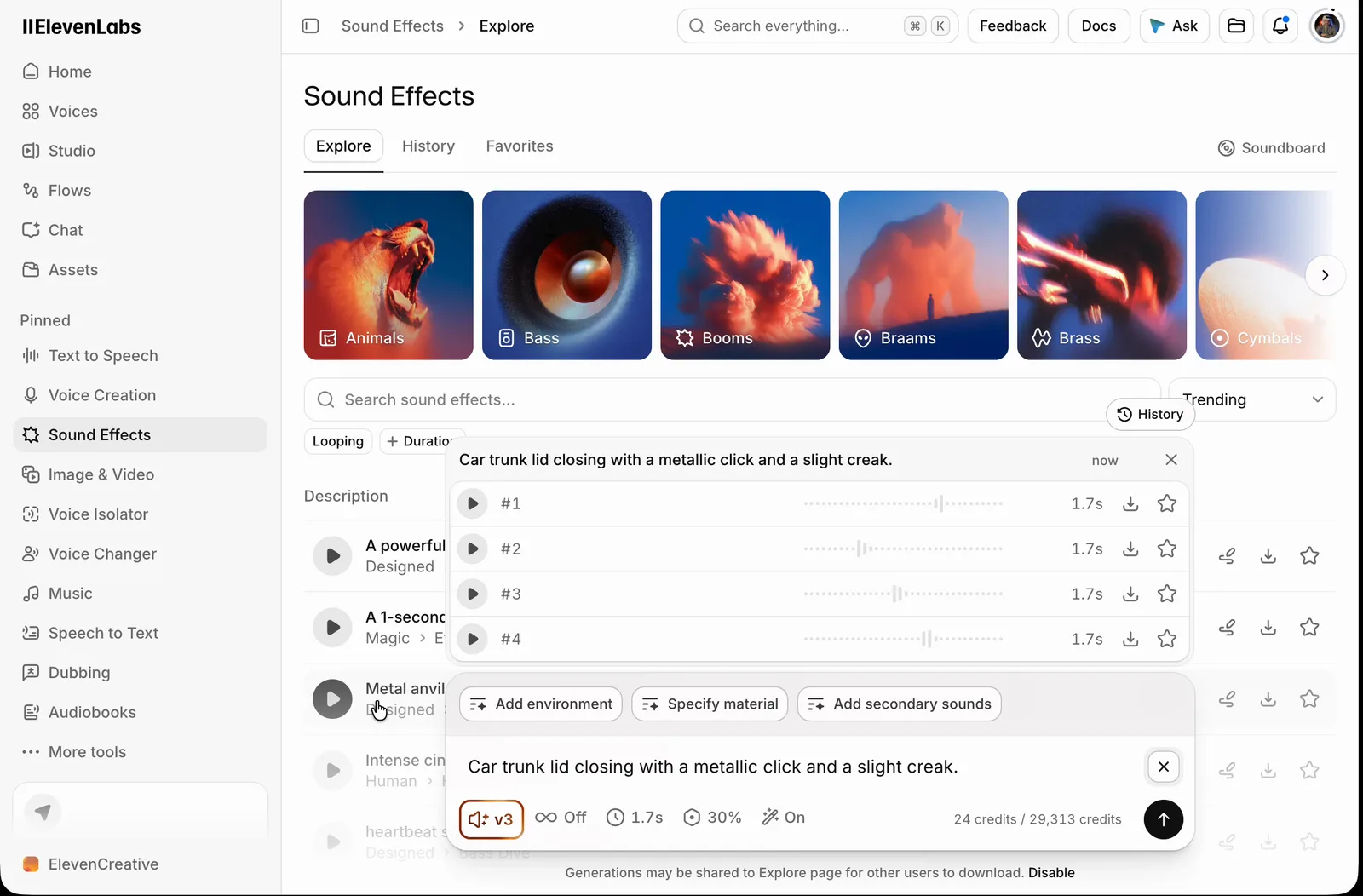
- Play each option while picturing the shot. Choose the one that matches the type of movement, not the loudest.
- Click the download icon next to it. The file is ready for your edit (MP3 or WAV).
- None fits? Change the description or the duration and generate again, instead of forcing the first result onto a scene it does not match.
- Earlier results stay in the History tab, and the star saves an option to Favorites.
Place the sound in your edit and compare
Generating is one step, syncing is the second. The final call happens inside the scene.
The sound starts on the same frame the movement starts. Slide the file on the audio track until they line up.
Clearly audible, without startling the viewer or covering the voice-over.
Does it sound like the movement and the material? If not, go back to step 3.
Play the shot once without the effect and once with it. The difference should be audible without music covering it.
Do not present the effect as a real recording of the object. Label it as AI-generated, especially in educational content.
Ready descriptions to copy
Each one names the action, the material and the setting. Replace the words that do not match your shot.
Door
Heavy wooden door closing slowly in a quiet hallway, soft latch click at the end.Footsteps
Footsteps on gravel, then a metallic door opens.Glass
Glass shattering on concrete.Transition
Fast airy whoosh passing from left to right, short and clean.Background (turn Looping on)
Light rain on a car roof, steady ambience, no thunder.Phone
Smartphone placed on a wooden table, short soft tap, small room.Plans and commercial use
$0, 10,000 credits a month. No commercial licence. If you publish the sound, ElevenLabs asks you to include "elevenlabs.io" or "11.ai" in the title.
Starter is $6 a month ($1 for the first month) with 30,000 credits and a commercial licence. All paid plans include one, and sounds made during a paid subscription stay usable commercially afterwards.
Credits are shared across ElevenLabs tools. The cost of a generation depends on the settings (duration and number of results), not on how long your description is.
Try it on your clip
Sources: ElevenLabs Sound Effects help (elevenlabs.io/docs/eleven-creative/playground/sound-effects), Sound Effects capability docs, API reference, changelog (2 November 2026), pricing page, and the help article "Can I publish the content I generate on the platform?". Screenshots: the author's own, 28 October 2026; menu layout may change with platform updates. Checked November 2026.
Want your team to use this at work?
I'm Abdulaziz Alshamsi, a certified AI trainer and consultant in Abu Dhabi. I train government and company teams to use AI in their daily work. Message me to discuss a session for your team.